> ## Documentation Index
> Fetch the complete documentation index at: https://docs.odella.ai/llms.txt
> Use this file to discover all available pages before exploring further.
# HTTP Call Block
> Make HTTP requests to external APIs and services
## Overview
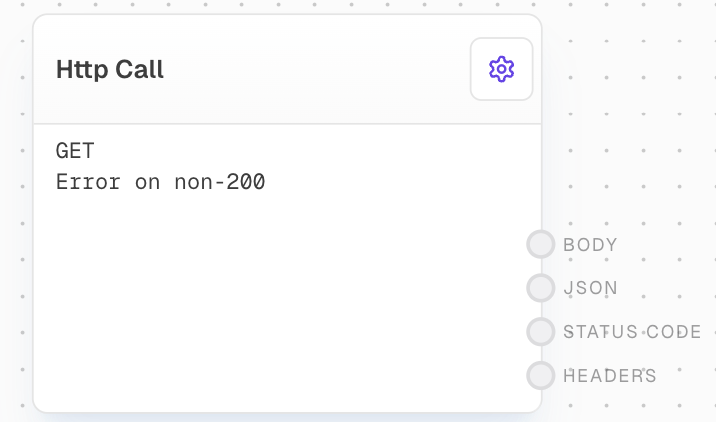
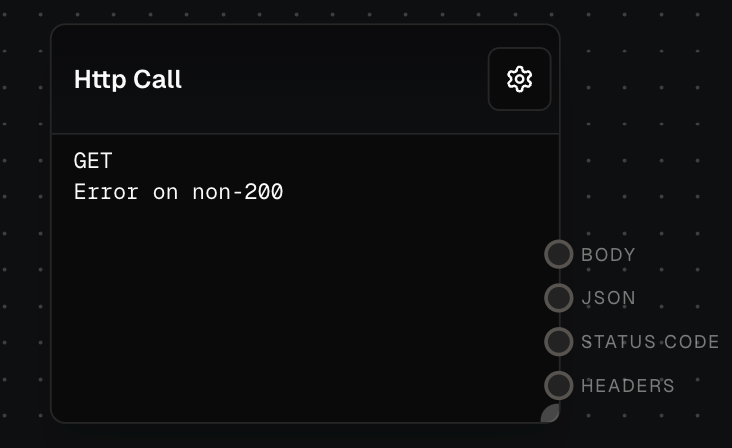
The HTTP Call Block allows you to make HTTP requests to specified URLs with custom methods, headers, and body. This versatile block is essential for interacting with external APIs or services within your workflow.
 ## Inputs
The HTTP method to use for the request (GET, POST, PUT, DELETE). Only shown when "Use Input" is enabled for Method.
The URL to make the HTTP request to. Only shown when "Use Input" is enabled for URL.
An object containing the headers to include in the HTTP request. Only shown when "Use Input" is enabled for Headers. Can accept a string containing JSON or an object.
The body of the HTTP request. Only shown when "Use Input" is enabled for Body. Can accept a string or an object that will be stringified.
## Outputs
The raw text body of the HTTP response.
If the response has a content-type of application/json, this output will contain the parsed JSON object. Otherwise, this output will not be available.
The HTTP status code of the response.
An object containing the headers from the HTTP response.
## Editor Settings
The HTTP method to use. Options are GET, POST, PUT, or DELETE. Has an "Use Input" toggle to accept the method via input instead.
The URL to make the request to. Has a "Use Input" toggle to accept the URL via input instead.
JSON object containing request headers. Has a "Use Input" toggle to accept headers via input instead.
The request body. Has a "Use Input" toggle to accept body content via input instead.
If enabled, the block will error if the response status code is not 200.
## Notes
* When running in a browser environment, requests may be limited by CORS policies. If you encounter CORS issues, try using the Node executor instead.
* Headers provided via input can be either a JSON string or an object
* Body content provided via input can be either a string or an object (which will be stringified)
* The JSON output is only available when the response has a content-type of application/json
## Examples
### Example 1: Make a GET request to an API
1. Create an HTTP Call Block and set the `Method` to `GET` and the `URL` to `https://jsonplaceholder.typicode.com/todos/1`.
2. Run the flow. You should see all of the response data, such as the headers, response code, and body, in the output panel.
### Example 2: Make a POST request to an API
1. Create an HTTP Call Block and set the `Method` to `POST` and the `URL` to `https://jsonplaceholder.typicode.com/posts`. Enable the "Use Input" toggle on the "Body" setting.
2. Create an [Object Block](/block-reference/data/object) with the following content:
## Inputs
The HTTP method to use for the request (GET, POST, PUT, DELETE). Only shown when "Use Input" is enabled for Method.
The URL to make the HTTP request to. Only shown when "Use Input" is enabled for URL.
An object containing the headers to include in the HTTP request. Only shown when "Use Input" is enabled for Headers. Can accept a string containing JSON or an object.
The body of the HTTP request. Only shown when "Use Input" is enabled for Body. Can accept a string or an object that will be stringified.
## Outputs
The raw text body of the HTTP response.
If the response has a content-type of application/json, this output will contain the parsed JSON object. Otherwise, this output will not be available.
The HTTP status code of the response.
An object containing the headers from the HTTP response.
## Editor Settings
The HTTP method to use. Options are GET, POST, PUT, or DELETE. Has an "Use Input" toggle to accept the method via input instead.
The URL to make the request to. Has a "Use Input" toggle to accept the URL via input instead.
JSON object containing request headers. Has a "Use Input" toggle to accept headers via input instead.
The request body. Has a "Use Input" toggle to accept body content via input instead.
If enabled, the block will error if the response status code is not 200.
## Notes
* When running in a browser environment, requests may be limited by CORS policies. If you encounter CORS issues, try using the Node executor instead.
* Headers provided via input can be either a JSON string or an object
* Body content provided via input can be either a string or an object (which will be stringified)
* The JSON output is only available when the response has a content-type of application/json
## Examples
### Example 1: Make a GET request to an API
1. Create an HTTP Call Block and set the `Method` to `GET` and the `URL` to `https://jsonplaceholder.typicode.com/todos/1`.
2. Run the flow. You should see all of the response data, such as the headers, response code, and body, in the output panel.
### Example 2: Make a POST request to an API
1. Create an HTTP Call Block and set the `Method` to `POST` and the `URL` to `https://jsonplaceholder.typicode.com/posts`. Enable the "Use Input" toggle on the "Body" setting.
2. Create an [Object Block](/block-reference/data/object) with the following content: