> ## Documentation Index
> Fetch the complete documentation index at: https://docs.odella.ai/llms.txt
> Use this file to discover all available pages before exploring further.
# Describe Image Block for AI Image Analysis
> Use the Describe Image block to analyze images, charts, screenshots, and diagrams with natural language prompts in Odella workflows.
## Overview
Use the Describe Image block when a workflow needs to analyze an image, chart, screenshot, diagram, or scanned visual and return a text description. Provide an image plus an optional natural language prompt to focus the analysis on specific details, then pass the output into blocks like [Ask AI](/block-reference/ai/ai), [Extract Data](/block-reference/ai/extract-data), or [Flow Output](/block-reference/io/graph-output).
 ## Inputs
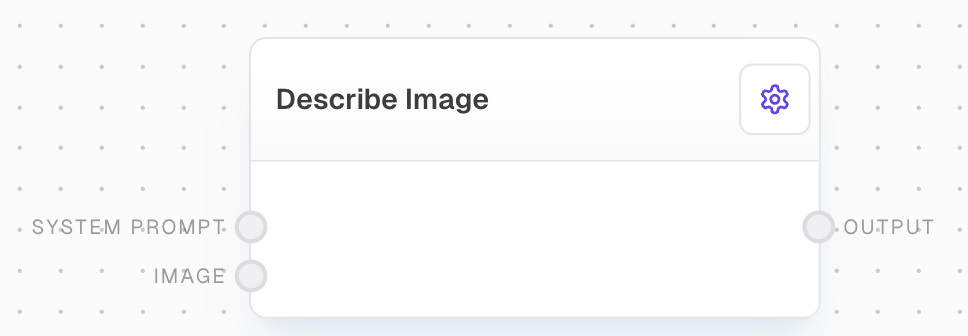
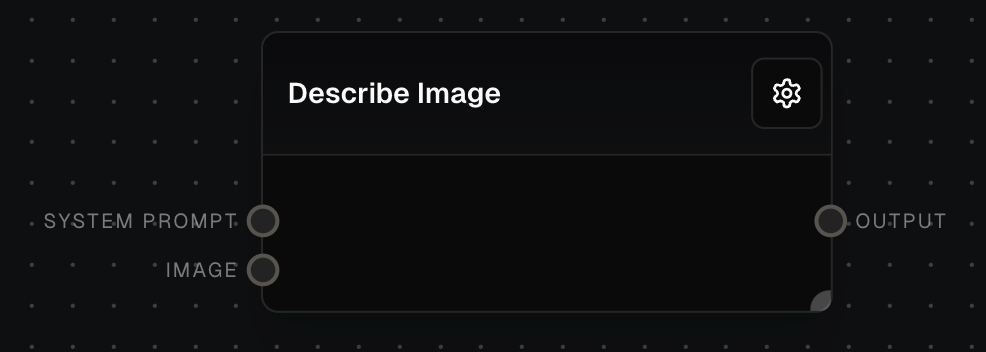
The system prompt to send to the model. Optional. Used to provide high-level guidance to the AI model.
The prompt message or messages to send to the model. Only available if "Use Prompt Input" is enabled in settings.
The input image to be analyzed. Required. The image will be converted to a data URI before being sent to the model.
## Outputs
The resulting description of the image. The content and focus of this description will depend on the input image and any provided prompts.
## Editor Settings
The AI vision model used to describe the image. Available models are dynamically populated based on the LLM provider configuration.
When enabled, allows the prompt to be provided via an input port instead of being set in the settings.
The prompt to use when "Use Prompt Input" is disabled. This text will be sent to the model along with the image.
The maximum number of tokens to generate in the response.
The sampling temperature to use. Lower values produce more focused and deterministic outputs, while higher values allow for more creativity in descriptions.
Available settings may vary depending on the selected LLM provider and model.
## Example: Analyzing a Chart Image
1. Add a Describe Image block to your flow.
2. Connect your input image (e.g., a chart or graph) to the `image` input of the Describe Image block.
3. Add a Text block with a prompt like "Describe the main trends and key data points in this chart" and connect it to the `prompt` input if using prompt input mode.
4. Select your desired model in the Describe Image block settings.
5. Run your flow. The block will output a detailed description of the chart, focusing on the trends and key data points.
## Use Case: Screenshot Triage
For support or operations workflows, connect an uploaded screenshot to the Describe Image block and ask it to summarize visible errors, form fields, or UI state. You can then route the description into [Extract Data](/block-reference/ai/extract-data) to capture structured fields, [AI Filter](/block-reference/ai/ai-filter) to prioritize issues, or [Confirm](/block-reference/io/confirm) to ask a human reviewer before continuing.
## Error Handling
* If the input image is empty, invalid, or in an unsupported format, the block will return an error.
* If the AI provider fails to analyze the image, the block will retry up to 3 times with exponential backoff (1-10 seconds between retries).
* If the image is too large or complex for the model to process, the block may return an error or a partial description.
Always validate the output of the Describe Image block, especially when using it for critical applications or decision-making processes.
## FAQ
The block can analyze a wide variety of images, including photographs, charts, graphs, diagrams, and more. The effectiveness may vary depending on the complexity of the image and the capabilities of the chosen AI model.
The level of detail in the descriptions can vary based on the complexity of the image, the specificity of the prompt (if provided), and the capabilities of the chosen AI model. You can often get more detailed or focused descriptions by using specific prompts.
While the block can generally describe the contents of an image, including objects and people, it typically doesn't identify specific individuals. The level of object recognition depends on the AI model's training and capabilities.
## See Also
* [Create Chart Block](/block-reference/ai/create-chart)
* [Ask AI Block](/block-reference/ai/ai)
* [Extract Data Block](/block-reference/ai/extract-data)
* [AI Filter Block](/block-reference/ai/ai-filter)
* [Confirm Block](/block-reference/io/confirm)
## Inputs
The system prompt to send to the model. Optional. Used to provide high-level guidance to the AI model.
The prompt message or messages to send to the model. Only available if "Use Prompt Input" is enabled in settings.
The input image to be analyzed. Required. The image will be converted to a data URI before being sent to the model.
## Outputs
The resulting description of the image. The content and focus of this description will depend on the input image and any provided prompts.
## Editor Settings
The AI vision model used to describe the image. Available models are dynamically populated based on the LLM provider configuration.
When enabled, allows the prompt to be provided via an input port instead of being set in the settings.
The prompt to use when "Use Prompt Input" is disabled. This text will be sent to the model along with the image.
The maximum number of tokens to generate in the response.
The sampling temperature to use. Lower values produce more focused and deterministic outputs, while higher values allow for more creativity in descriptions.
Available settings may vary depending on the selected LLM provider and model.
## Example: Analyzing a Chart Image
1. Add a Describe Image block to your flow.
2. Connect your input image (e.g., a chart or graph) to the `image` input of the Describe Image block.
3. Add a Text block with a prompt like "Describe the main trends and key data points in this chart" and connect it to the `prompt` input if using prompt input mode.
4. Select your desired model in the Describe Image block settings.
5. Run your flow. The block will output a detailed description of the chart, focusing on the trends and key data points.
## Use Case: Screenshot Triage
For support or operations workflows, connect an uploaded screenshot to the Describe Image block and ask it to summarize visible errors, form fields, or UI state. You can then route the description into [Extract Data](/block-reference/ai/extract-data) to capture structured fields, [AI Filter](/block-reference/ai/ai-filter) to prioritize issues, or [Confirm](/block-reference/io/confirm) to ask a human reviewer before continuing.
## Error Handling
* If the input image is empty, invalid, or in an unsupported format, the block will return an error.
* If the AI provider fails to analyze the image, the block will retry up to 3 times with exponential backoff (1-10 seconds between retries).
* If the image is too large or complex for the model to process, the block may return an error or a partial description.
Always validate the output of the Describe Image block, especially when using it for critical applications or decision-making processes.
## FAQ
The block can analyze a wide variety of images, including photographs, charts, graphs, diagrams, and more. The effectiveness may vary depending on the complexity of the image and the capabilities of the chosen AI model.
The level of detail in the descriptions can vary based on the complexity of the image, the specificity of the prompt (if provided), and the capabilities of the chosen AI model. You can often get more detailed or focused descriptions by using specific prompts.
While the block can generally describe the contents of an image, including objects and people, it typically doesn't identify specific individuals. The level of object recognition depends on the AI model's training and capabilities.
## See Also
* [Create Chart Block](/block-reference/ai/create-chart)
* [Ask AI Block](/block-reference/ai/ai)
* [Extract Data Block](/block-reference/ai/extract-data)
* [AI Filter Block](/block-reference/ai/ai-filter)
* [Confirm Block](/block-reference/io/confirm)