> ## Documentation Index
> Fetch the complete documentation index at: https://docs.odella.ai/llms.txt
> Use this file to discover all available pages before exploring further.
# Date Block
> Select a date value for use in your workflow
## Overview
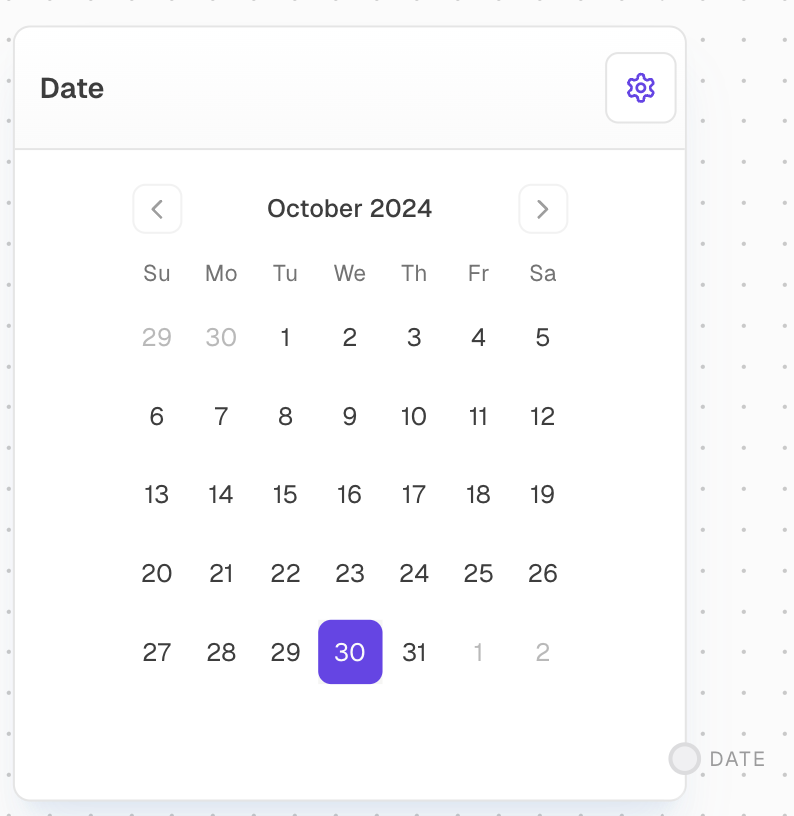
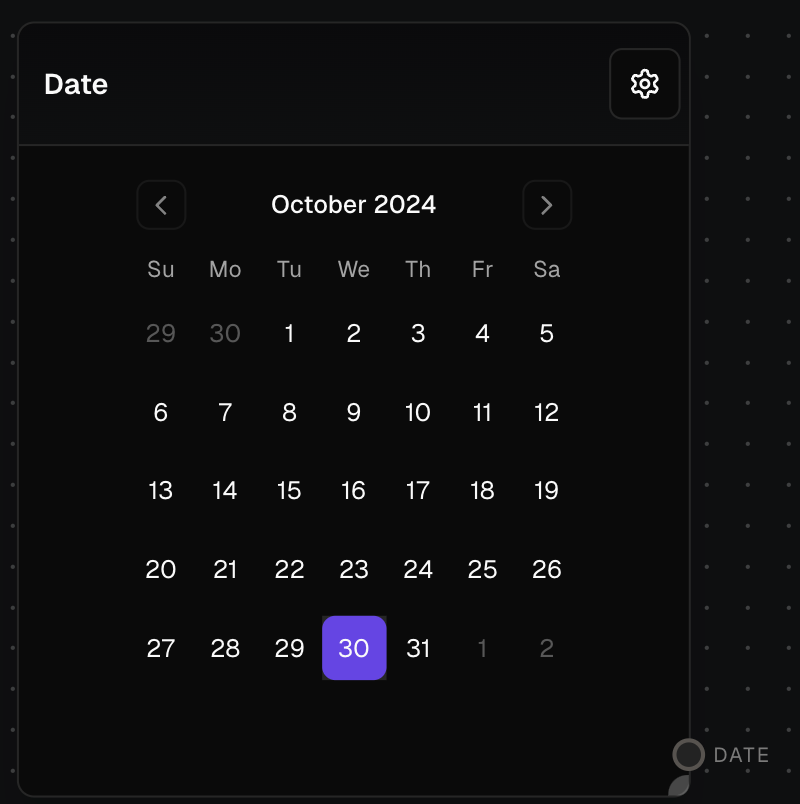
The Date Block provides a date picker to select a specific date value that can be used in your workflow. The selected date is output in ISO string format.
 ## Inputs
This block does not have any inputs.
## Outputs
The selected date value in ISO string format.
## Editor Settings
The date value to output. Uses a date picker interface to select a date.
The width of the block in pixels.
Whether the block is hidden in the block menu.
## Example: Using a Date Block
1. Add a Date Block to your flow
2. Use the date picker to select your desired date
3. Connect the `data` output to another block that accepts datetime values
4. Run the flow. The selected date will be passed to the connected block.
## Error Handling
The Date Block will throw an error if:
* The selected date is invalid
* The date cannot be converted to ISO string format
Ensure the selected date is valid to avoid errors in blocks consuming the date value.
## FAQ
The Date Block outputs dates in ISO string format (e.g. "2024-01-01T00:00:00.000Z").
No, the Date Block only allows date selection through its date picker interface. For programmatic date handling, consider using other blocks that accept date inputs.
## See Also
* [Number Block](/block-reference/data/number)
* [Text Block](/block-reference/data/text)
* [Bool Block](/block-reference/data/boolean)
## Inputs
This block does not have any inputs.
## Outputs
The selected date value in ISO string format.
## Editor Settings
The date value to output. Uses a date picker interface to select a date.
The width of the block in pixels.
Whether the block is hidden in the block menu.
## Example: Using a Date Block
1. Add a Date Block to your flow
2. Use the date picker to select your desired date
3. Connect the `data` output to another block that accepts datetime values
4. Run the flow. The selected date will be passed to the connected block.
## Error Handling
The Date Block will throw an error if:
* The selected date is invalid
* The date cannot be converted to ISO string format
Ensure the selected date is valid to avoid errors in blocks consuming the date value.
## FAQ
The Date Block outputs dates in ISO string format (e.g. "2024-01-01T00:00:00.000Z").
No, the Date Block only allows date selection through its date picker interface. For programmatic date handling, consider using other blocks that accept date inputs.
## See Also
* [Number Block](/block-reference/data/number)
* [Text Block](/block-reference/data/text)
* [Bool Block](/block-reference/data/boolean)