> ## Documentation Index
> Fetch the complete documentation index at: https://docs.odella.ai/llms.txt
> Use this file to discover all available pages before exploring further.
# File Block
> Upload and use file data in your workflow
## Overview
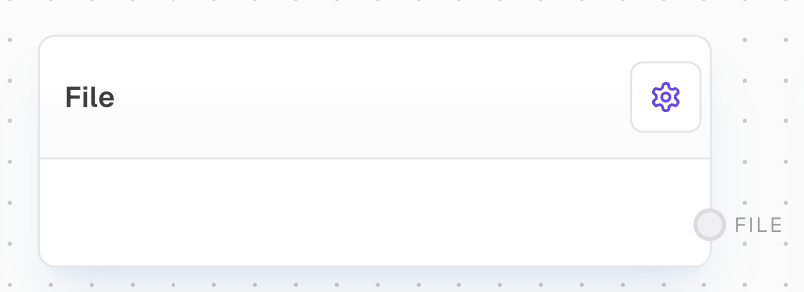
The File Block allows you to upload and use file data in your workflow. It supports various file types including PDF, Microsoft Word documents (.doc, .docx), and CSV files. This block is particularly useful when you need to work with external data or documents within your flow.
 ## Inputs
This block does not have any inputs.
## Outputs
The uploaded file data that can be used by other blocks in the workflow.
## Editor Settings
Upload a file from your local system. Supported file types include:
* PDF files (.pdf)
* Microsoft Word documents (.doc, .docx)
* CSV files (.csv)
The width of the block in pixels.
Whether the block is hidden in the block menu.
## Example: Using a File Block with PDF Analysis
1. Add a File Block to your flow.
2. In the block's settings, click "Upload File" and select a PDF document from your local file system.
3. Connect the `data` output of the File Block to an AI block capable of analyzing PDF content, such as a custom PDF Analysis block.
4. Run your flow. The PDF content will be processed by the AI block for further analysis or extraction.
## Error Handling
The File Block will throw an error if:
* No file data is provided
* The file provider is not available
* The file upload fails or cannot be accessed
Ensure that you have the necessary permissions to use and process the files you upload, especially when working with sensitive or copyrighted material.
## FAQ
The File Block supports:
* PDF files (.pdf)
* Microsoft Word documents (.doc, .docx)
* CSV files (.csv)
No, the File Block is designed to handle one file at a time. If you need to work with multiple files, you can use multiple File Blocks in your workflow.
The file data output from the File Block can be connected to other blocks in your workflow that are capable of processing the specific file type. For example, you might connect a PDF file to a PDF text extraction block, or a CSV file to a data analysis block.
## See Also
* [Text Block](/block-reference/data/text)
* [Table Block](/block-reference/loaders/read-table)
* [Analyze Table Block](/block-reference/ai/analyze-table)
## Inputs
This block does not have any inputs.
## Outputs
The uploaded file data that can be used by other blocks in the workflow.
## Editor Settings
Upload a file from your local system. Supported file types include:
* PDF files (.pdf)
* Microsoft Word documents (.doc, .docx)
* CSV files (.csv)
The width of the block in pixels.
Whether the block is hidden in the block menu.
## Example: Using a File Block with PDF Analysis
1. Add a File Block to your flow.
2. In the block's settings, click "Upload File" and select a PDF document from your local file system.
3. Connect the `data` output of the File Block to an AI block capable of analyzing PDF content, such as a custom PDF Analysis block.
4. Run your flow. The PDF content will be processed by the AI block for further analysis or extraction.
## Error Handling
The File Block will throw an error if:
* No file data is provided
* The file provider is not available
* The file upload fails or cannot be accessed
Ensure that you have the necessary permissions to use and process the files you upload, especially when working with sensitive or copyrighted material.
## FAQ
The File Block supports:
* PDF files (.pdf)
* Microsoft Word documents (.doc, .docx)
* CSV files (.csv)
No, the File Block is designed to handle one file at a time. If you need to work with multiple files, you can use multiple File Blocks in your workflow.
The file data output from the File Block can be connected to other blocks in your workflow that are capable of processing the specific file type. For example, you might connect a PDF file to a PDF text extraction block, or a CSV file to a data analysis block.
## See Also
* [Text Block](/block-reference/data/text)
* [Table Block](/block-reference/loaders/read-table)
* [Analyze Table Block](/block-reference/ai/analyze-table)