> ## Documentation Index
> Fetch the complete documentation index at: https://docs.odella.ai/llms.txt
> Use this file to discover all available pages before exploring further.
# Image Block
> Define a static image for use with other nodes. Can convert a binary type into an image type.
## Overview
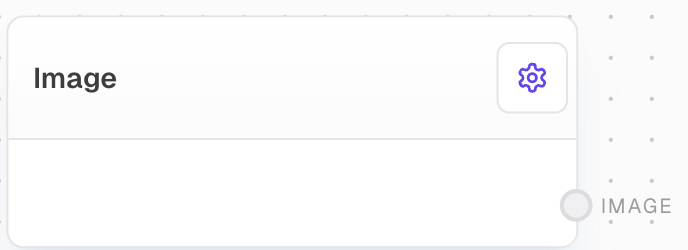
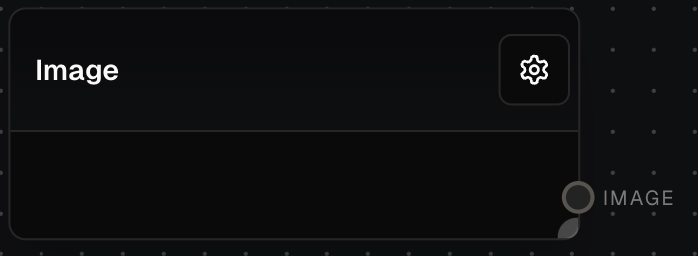
The Image Block is used to define a static image for use with other blocks. It supports PNG, JPEG, and JPG formats and allows you to select an image file from your local system.
 ## Inputs
This block does not have any inputs.
## Outputs
The image that was loaded or converted from the input data.
## Editor Settings
The image file to be used. Click to select an image from your local file system.
The width of the block in pixels.
Whether the block is hidden in the block menu.
## Example: Using a Static Image
1. Add an Image Block to your flow
2. In the block's settings, click to select an image file from your local file system
3. Connect the `image` output to another block that accepts image inputs
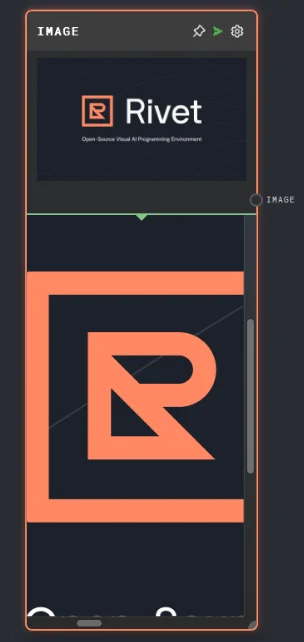
4. Run your flow. The selected image will be passed to the connected block.
## Inputs
This block does not have any inputs.
## Outputs
The image that was loaded or converted from the input data.
## Editor Settings
The image file to be used. Click to select an image from your local file system.
The width of the block in pixels.
Whether the block is hidden in the block menu.
## Example: Using a Static Image
1. Add an Image Block to your flow
2. In the block's settings, click to select an image file from your local file system
3. Connect the `image` output to another block that accepts image inputs
4. Run your flow. The selected image will be passed to the connected block.
 ## Error Handling
The Image Block will throw an error if:
* No image data is provided
* The file provider is not available
* The image file cannot be accessed or loaded
Ensure that you have selected a valid image file and have the necessary permissions to access it.
## FAQ
The Image Block supports:
* PNG (.png)
* JPEG/JPG (.jpeg, .jpg)
Yes, the Image Block can convert binary data into an image type that can be used by other blocks in your workflow.
The block will throw an error if no image data is provided. You must select an image file for the block to function properly.
## See Also
* [File Block](/block-reference/data/file)
* [Audio Block](/block-reference/data/audio)
* [Text Block](/block-reference/data/text)
## Error Handling
The Image Block will throw an error if:
* No image data is provided
* The file provider is not available
* The image file cannot be accessed or loaded
Ensure that you have selected a valid image file and have the necessary permissions to access it.
## FAQ
The Image Block supports:
* PNG (.png)
* JPEG/JPG (.jpeg, .jpg)
Yes, the Image Block can convert binary data into an image type that can be used by other blocks in your workflow.
The block will throw an error if no image data is provided. You must select an image file for the block to function properly.
## See Also
* [File Block](/block-reference/data/file)
* [Audio Block](/block-reference/data/audio)
* [Text Block](/block-reference/data/text)