> ## Documentation Index
> Fetch the complete documentation index at: https://docs.odella.ai/llms.txt
> Use this file to discover all available pages before exploring further.
# Multi-Modal Draft Block
> Generate various document types using AI-powered drafting capabilities with text and image inputs
## Overview
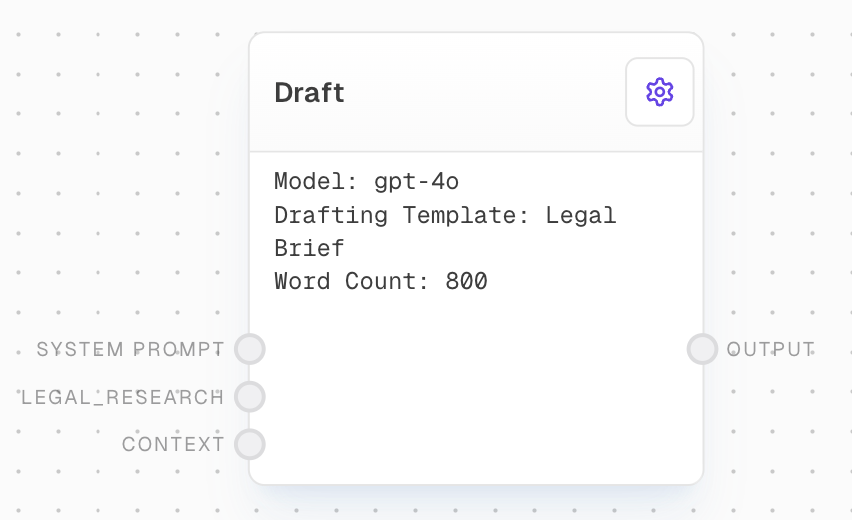
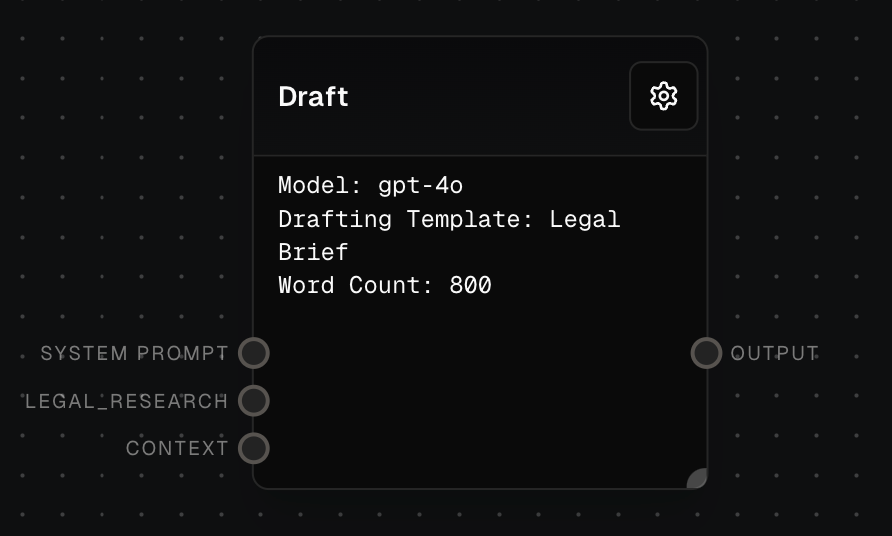
The Multi-Modal Draft Block leverages AI to generate various types of documents based on user prompts, context, and images. It offers a set of example templates for common document types and an optimized custom template feature for more specific drafting needs. This block intelligently incorporates both textual and visual information to create comprehensive and context-aware documents.
 ## Inputs
The system prompt to send to the model. This provides high-level instructions or context for the AI model.
The prompt to send to the model. Only available when "Use Prompt Input" is enabled.
An array of images to be analyzed and incorporated into the document. Only available when "Multi-Modal" is enabled.
When using templates, additional inputs are dynamically generated based on the template's variables. These inputs are used to customize the template output.
## Outputs
The generated document draft based on the inputs and template.
The time taken to generate the draft in milliseconds.
The number of words in the generated draft.
## Editor Settings
The AI model to use for document generation. Available models are dynamically populated based on your configuration.
When enabled, allows the block to process both text and image inputs to generate the output.
When enabled, allows direct prompt input instead of using templates.
Select from predefined templates: Legal Brief, Research Report, Email, or Letter. Only available when "Use Prompt Input" is disabled.
The target word count for the generated document. Only available when "Use Prompt Input" is disabled.
## Example Templates
The Draft Block includes the following pre-configured templates:
* Legal Brief
* Research Report
* Email
* Letter
Each template is optimized for its specific use case and includes relevant variables for customization.
## Example: Using a Template
1. Add a Draft Block to your flow
2. Select your desired template from "Drafting Prompt Template"
3. Configure the word count and other settings
4. Connect required inputs based on the template variables
5. Run the flow to generate your document
## Inputs
The system prompt to send to the model. This provides high-level instructions or context for the AI model.
The prompt to send to the model. Only available when "Use Prompt Input" is enabled.
An array of images to be analyzed and incorporated into the document. Only available when "Multi-Modal" is enabled.
When using templates, additional inputs are dynamically generated based on the template's variables. These inputs are used to customize the template output.
## Outputs
The generated document draft based on the inputs and template.
The time taken to generate the draft in milliseconds.
The number of words in the generated draft.
## Editor Settings
The AI model to use for document generation. Available models are dynamically populated based on your configuration.
When enabled, allows the block to process both text and image inputs to generate the output.
When enabled, allows direct prompt input instead of using templates.
Select from predefined templates: Legal Brief, Research Report, Email, or Letter. Only available when "Use Prompt Input" is disabled.
The target word count for the generated document. Only available when "Use Prompt Input" is disabled.
## Example Templates
The Draft Block includes the following pre-configured templates:
* Legal Brief
* Research Report
* Email
* Letter
Each template is optimized for its specific use case and includes relevant variables for customization.
## Example: Using a Template
1. Add a Draft Block to your flow
2. Select your desired template from "Drafting Prompt Template"
3. Configure the word count and other settings
4. Connect required inputs based on the template variables
5. Run the flow to generate your document
 ## Error Handling
The Draft Block includes robust error handling with automatic retries for:
* API rate limit exceeded (429 errors)
* API timeouts (408 errors)
* Network failures
* Other recoverable errors
The block will display appropriate error messages and retry automatically when possible.
The block has a maximum retry time of 5 minutes and will throw an error if unable to complete within this timeframe.
## FAQ
When Multi-Modal is enabled, the block can process both text and image inputs simultaneously. The AI model analyzes the images and incorporates relevant visual information into the generated document.
Templates provide structured, pre-configured prompts optimized for specific document types. Direct prompt input gives you more flexibility but requires you to craft your own prompting strategy.
The block automatically retries failed attempts with exponential backoff, with delays between 500ms and 5000ms. It handles rate limits and timeouts gracefully while keeping you informed of retry status.
## See Also
* [Ask AI Block](/block-reference/ai/ai)
* [Text Block](/block-reference/data/text)
* [Image Block](/block-reference/data/image)
* [Object Block](/block-reference/data/object)
## Error Handling
The Draft Block includes robust error handling with automatic retries for:
* API rate limit exceeded (429 errors)
* API timeouts (408 errors)
* Network failures
* Other recoverable errors
The block will display appropriate error messages and retry automatically when possible.
The block has a maximum retry time of 5 minutes and will throw an error if unable to complete within this timeframe.
## FAQ
When Multi-Modal is enabled, the block can process both text and image inputs simultaneously. The AI model analyzes the images and incorporates relevant visual information into the generated document.
Templates provide structured, pre-configured prompts optimized for specific document types. Direct prompt input gives you more flexibility but requires you to craft your own prompting strategy.
The block automatically retries failed attempts with exponential backoff, with delays between 500ms and 5000ms. It handles rate limits and timeouts gracefully while keeping you informed of retry status.
## See Also
* [Ask AI Block](/block-reference/ai/ai)
* [Text Block](/block-reference/data/text)
* [Image Block](/block-reference/data/image)
* [Object Block](/block-reference/data/object)