> ## Documentation Index
> Fetch the complete documentation index at: https://docs.odella.ai/llms.txt
> Use this file to discover all available pages before exploring further.
# Table to File Block
> Convert tabular data into a CSV file
## Overview
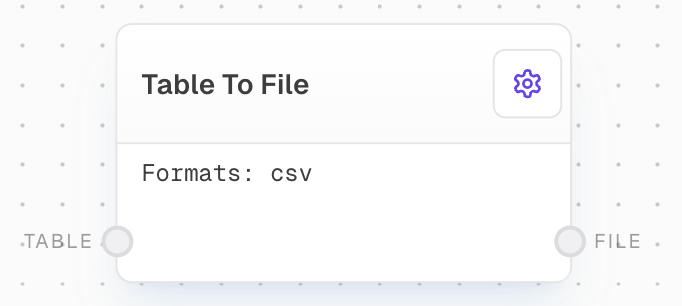
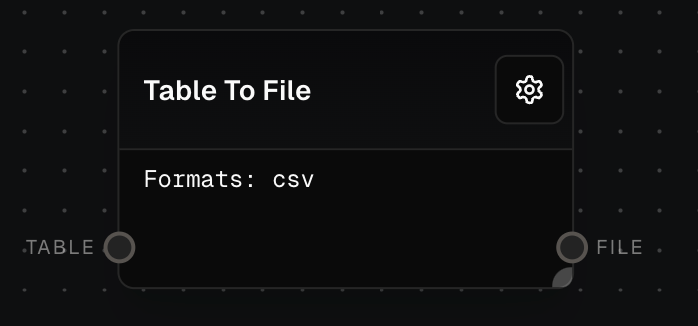
The Table to File Block converts tabular data into a CSV (Comma-Separated Values) file. This block is particularly useful when you need to export data from your flow in a widely compatible format for further analysis or sharing.
 ## Inputs
The table to convert. The input will be coerced to a table format if needed.
## Outputs
The converted file output in CSV format.
The time taken to process the conversion in milliseconds.
## Editor Settings
The output file formats to generate. Currently only supports CSV format.
## Example: Exporting a Table to CSV
1. Add a Table to File block to your flow.
2. Connect your input table to the `table` input of the Table to File block.
3. Run your flow. The block will output a CSV file containing your table data.
## Inputs
The table to convert. The input will be coerced to a table format if needed.
## Outputs
The converted file output in CSV format.
The time taken to process the conversion in milliseconds.
## Editor Settings
The output file formats to generate. Currently only supports CSV format.
## Example: Exporting a Table to CSV
1. Add a Table to File block to your flow.
2. Connect your input table to the `table` input of the Table to File block.
3. Run your flow. The block will output a CSV file containing your table data.
 ## Error Handling
The block will error if:
* No Docme endpoint is configured in settings
* The input table is invalid or cannot be coerced to a table format
Ensure that the input table data is properly structured and that your environment is correctly configured with a Docme endpoint.
## FAQ
Currently, the Table to File block only supports CSV (Comma-Separated Values) format. Additional formats may be added in future updates.
The block will attempt to coerce the input data into a table format if it's not already in the correct format. This provides flexibility in handling different input data structures.
## See Also
* [Table Block](/block-reference/loaders/read-table)
* [File Block](/block-reference/data/file)
* [Draft Block](/block-reference/draft/draft)
## Error Handling
The block will error if:
* No Docme endpoint is configured in settings
* The input table is invalid or cannot be coerced to a table format
Ensure that the input table data is properly structured and that your environment is correctly configured with a Docme endpoint.
## FAQ
Currently, the Table to File block only supports CSV (Comma-Separated Values) format. Additional formats may be added in future updates.
The block will attempt to coerce the input data into a table format if it's not already in the correct format. This provides flexibility in handling different input data structures.
## See Also
* [Table Block](/block-reference/loaders/read-table)
* [File Block](/block-reference/data/file)
* [Draft Block](/block-reference/draft/draft)