> ## Documentation Index
> Fetch the complete documentation index at: https://docs.odella.ai/llms.txt
> Use this file to discover all available pages before exploring further.
# Upload File Block
> Allow users to upload files for use in your workflow
 ## Overview
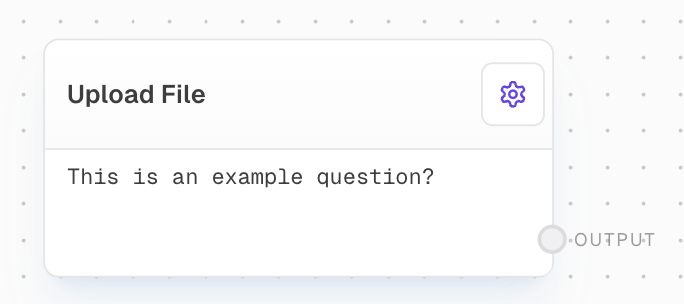
The Upload File Block is a user input component that prompts users to upload a file. It's designed to wait for the user to select and upload a file before proceeding with the workflow. This block is particularly useful when you need to incorporate user-provided files into your flow for further processing or analysis.
## Inputs
The questions/prompts to display to the user. Only available when "Use Input" is enabled.
A value to wait for before showing the file upload prompt. Only available when "Wait For Input" is enabled.
## Outputs
The uploaded file data. This can be used in subsequent blocks for processing or analysis.
## Editor Settings
The message displayed to the user when prompted to upload a file. Only editable when "Use Input" is disabled.
When enabled, allows the prompt message to be provided via the questions input port instead of the editor settings.
When enabled, delays showing the file upload prompt until the "Wait For" input receives a value.
The file types that the block will accept. Default supported types:
* PDF files (application/pdf)
* Microsoft Word documents (application/msword)
* CSV files (text/csv)
* Modern Word documents (.docx)
## Example: Uploading a CSV for Analysis
1. Add an Upload File Block to your flow.
2. Set the `prompt` to "Please upload a CSV file for analysis".
3. Connect the `output` to subsequent blocks to process the uploaded file.
4. When the flow runs, users will be prompted to upload a file matching the accepted types.
## Error Handling
* If a user attempts to upload a file type that is not in the accepted file types list, the block will display an error message and continue waiting for a valid file.
* If there are issues with file upload (e.g., network errors, file corruption), the block will fail and provide error details.
Always validate and sanitize uploaded files before processing them further in your workflow to ensure security and data integrity.
## FAQ
When "Use Input" is disabled, the prompt message is set statically in the editor settings. When enabled, the prompts can be dynamically provided via the questions input port.
When "Wait For Input" is enabled, the file upload prompt won't be shown until a value is received on the "Wait For" input port. This allows you to sequence file uploads after other operations complete.
By default, the block accepts PDF files, Microsoft Word documents (both .doc and .docx formats), and CSV files. The accepted file types are configured through the MIME types in the block settings.
## See Also
* [Table Block](/block-reference/loaders/read-table)
* [Text Block](/block-reference/data/text)
* [File Block](/block-reference/data/file)
## Overview
The Upload File Block is a user input component that prompts users to upload a file. It's designed to wait for the user to select and upload a file before proceeding with the workflow. This block is particularly useful when you need to incorporate user-provided files into your flow for further processing or analysis.
## Inputs
The questions/prompts to display to the user. Only available when "Use Input" is enabled.
A value to wait for before showing the file upload prompt. Only available when "Wait For Input" is enabled.
## Outputs
The uploaded file data. This can be used in subsequent blocks for processing or analysis.
## Editor Settings
The message displayed to the user when prompted to upload a file. Only editable when "Use Input" is disabled.
When enabled, allows the prompt message to be provided via the questions input port instead of the editor settings.
When enabled, delays showing the file upload prompt until the "Wait For" input receives a value.
The file types that the block will accept. Default supported types:
* PDF files (application/pdf)
* Microsoft Word documents (application/msword)
* CSV files (text/csv)
* Modern Word documents (.docx)
## Example: Uploading a CSV for Analysis
1. Add an Upload File Block to your flow.
2. Set the `prompt` to "Please upload a CSV file for analysis".
3. Connect the `output` to subsequent blocks to process the uploaded file.
4. When the flow runs, users will be prompted to upload a file matching the accepted types.
## Error Handling
* If a user attempts to upload a file type that is not in the accepted file types list, the block will display an error message and continue waiting for a valid file.
* If there are issues with file upload (e.g., network errors, file corruption), the block will fail and provide error details.
Always validate and sanitize uploaded files before processing them further in your workflow to ensure security and data integrity.
## FAQ
When "Use Input" is disabled, the prompt message is set statically in the editor settings. When enabled, the prompts can be dynamically provided via the questions input port.
When "Wait For Input" is enabled, the file upload prompt won't be shown until a value is received on the "Wait For" input port. This allows you to sequence file uploads after other operations complete.
By default, the block accepts PDF files, Microsoft Word documents (both .doc and .docx formats), and CSV files. The accepted file types are configured through the MIME types in the block settings.
## See Also
* [Table Block](/block-reference/loaders/read-table)
* [Text Block](/block-reference/data/text)
* [File Block](/block-reference/data/file)