> ## Documentation Index
> Fetch the complete documentation index at: https://docs.odella.ai/llms.txt
> Use this file to discover all available pages before exploring further.
# Read Text Block
> Read the contents of a file as text or markdown
 ## Overview
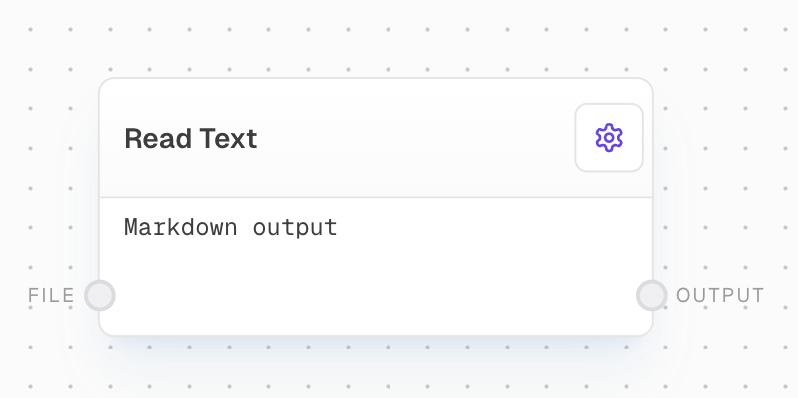
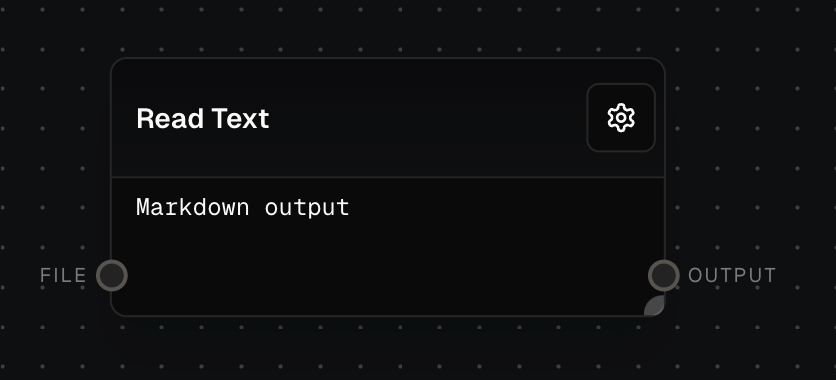
The Read Text Block is used to read and extract text content from PDF and DOCX files, outputting it as either plain text or markdown. This block is particularly useful for processing text-based documents within your workflow.
## Inputs
The input file to be read. Must be a PDF or DOCX file with a valid media type. This should be a file data value, typically provided by a File block or another block that outputs file data.
## Outputs
The extracted text content from the file, formatted as either plain text or markdown based on the Output Text Format setting.
## Editor Settings
Determines how the file content is interpreted and output. Options are:
* "Markdown": Interprets and outputs the file content as markdown
* "Text": Outputs the file content as plain text
## Example: Reading a PDF File
1. Add a Read Text block to your flow.
2. Connect a File block containing a PDF or DOCX file to the `file` input.
3. In the block settings, select your desired Output Text Format.
4. Run your flow. The block will extract and output the text content.
## Error Handling
* If the input file is missing or invalid, the block will return an error.
* If the file lacks a media type, the block will throw an error.
* If a FileProvider is needed to load from URL but not available, the block will throw an error.
* If there are issues reading the file (e.g., file permissions, corrupted file), the block will fail and provide error details.
Only PDF and DOCX files are currently supported. Ensure your input files are in one of these formats and have valid media types.
## FAQ
The Read Text block currently supports:
* PDF files (application/pdf)
* Microsoft Word documents (.doc and .docx)
When set to Markdown output, the block will preserve formatting and structure from the original document in markdown syntax. Text output provides raw text content without formatting.
The block includes retry logic for processing large files, with configurable timeout and retry settings. For extremely large files, consider potential memory usage and processing time implications.
## See Also
* [File Block](/block-reference/data/file)
* [Text To File](/block-reference/draft/text-to-file)
## Overview
The Read Text Block is used to read and extract text content from PDF and DOCX files, outputting it as either plain text or markdown. This block is particularly useful for processing text-based documents within your workflow.
## Inputs
The input file to be read. Must be a PDF or DOCX file with a valid media type. This should be a file data value, typically provided by a File block or another block that outputs file data.
## Outputs
The extracted text content from the file, formatted as either plain text or markdown based on the Output Text Format setting.
## Editor Settings
Determines how the file content is interpreted and output. Options are:
* "Markdown": Interprets and outputs the file content as markdown
* "Text": Outputs the file content as plain text
## Example: Reading a PDF File
1. Add a Read Text block to your flow.
2. Connect a File block containing a PDF or DOCX file to the `file` input.
3. In the block settings, select your desired Output Text Format.
4. Run your flow. The block will extract and output the text content.
## Error Handling
* If the input file is missing or invalid, the block will return an error.
* If the file lacks a media type, the block will throw an error.
* If a FileProvider is needed to load from URL but not available, the block will throw an error.
* If there are issues reading the file (e.g., file permissions, corrupted file), the block will fail and provide error details.
Only PDF and DOCX files are currently supported. Ensure your input files are in one of these formats and have valid media types.
## FAQ
The Read Text block currently supports:
* PDF files (application/pdf)
* Microsoft Word documents (.doc and .docx)
When set to Markdown output, the block will preserve formatting and structure from the original document in markdown syntax. Text output provides raw text content without formatting.
The block includes retry logic for processing large files, with configurable timeout and retry settings. For extremely large files, consider potential memory usage and processing time implications.
## See Also
* [File Block](/block-reference/data/file)
* [Text To File](/block-reference/draft/text-to-file)