> ## Documentation Index
> Fetch the complete documentation index at: https://docs.odella.ai/llms.txt
> Use this file to discover all available pages before exploring further.
# Compare Block
> Perform comparison operations between two input values
 ## Overview
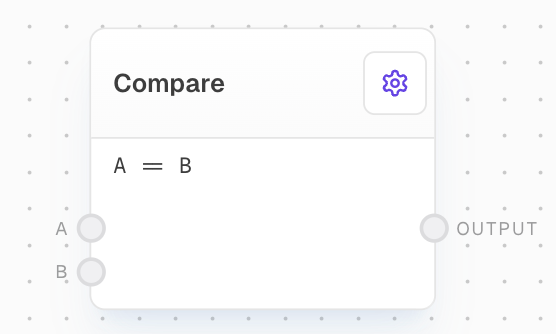
The Compare Block allows you to perform comparison operations between two input values. It supports various comparison functions including equality, inequality, less than, greater than, and logical operations such as AND, OR, XOR, NAND, NOR, and XNOR.
## Inputs
The first value for comparison. Required.
The second value for comparison. Required.
The comparison function to use. Only available when "Use Comparison Function Input" is enabled in settings.
## Outputs
The result of the comparison operation.
## Editor Settings
The comparison function to be used for the operation. Available options are:
* `==`: Equal to
* `!=`: Not equal to
* `<`: Less than
* `>`: Greater than
* `<=`: Less than or equal to
* `>=`: Greater than or equal to
* `and`: Logical AND
* `or`: Logical OR
* `xor`: Logical XOR
* `nand`: Logical NAND
* `nor`: Logical NOR
* `xnor`: Logical XNOR
When enabled, adds a "Comparison Function" input port that can override the comparison function setting.
## Example: Compare two numbers
1. Create a Compare Block and set the `Comparison Function` to `>`.
2. Create two Number Blocks, one with the value `5` and the other with the value `3`.
3. Connect the Number Blocks to the `A` and `B` inputs of the Compare Block respectively.
4. Run the flow. The output of the Compare Block will be `true`, because 5 is greater than 3.
## Error Handling
If input A is not provided:
* For `==` comparison: Returns `true` if B is also not provided, `false` otherwise
* For `!=` comparison: Returns `true` if B is provided, `false` otherwise
* For all other comparisons: Returns `false`
If the inputs are not of the same type, the block will attempt to coerce the second input (`B`) to the type of the first input (`A`).
## FAQ
If the inputs are not of the same type, the block will attempt to coerce the second input (`B`) to the type of the first input (`A`). If the coercion is not possible, the comparison will be performed with the original values.
Yes, you can use the Compare Block to compare arrays or objects. The comparison will be performed using a deep equality check that compares all nested values.
## See Also
* [If Block](/block-reference/logic/if-else)
* [Match Block](/block-reference/logic/match)
* [Code Block](/block-reference/advanced/code)
## Overview
The Compare Block allows you to perform comparison operations between two input values. It supports various comparison functions including equality, inequality, less than, greater than, and logical operations such as AND, OR, XOR, NAND, NOR, and XNOR.
## Inputs
The first value for comparison. Required.
The second value for comparison. Required.
The comparison function to use. Only available when "Use Comparison Function Input" is enabled in settings.
## Outputs
The result of the comparison operation.
## Editor Settings
The comparison function to be used for the operation. Available options are:
* `==`: Equal to
* `!=`: Not equal to
* `<`: Less than
* `>`: Greater than
* `<=`: Less than or equal to
* `>=`: Greater than or equal to
* `and`: Logical AND
* `or`: Logical OR
* `xor`: Logical XOR
* `nand`: Logical NAND
* `nor`: Logical NOR
* `xnor`: Logical XNOR
When enabled, adds a "Comparison Function" input port that can override the comparison function setting.
## Example: Compare two numbers
1. Create a Compare Block and set the `Comparison Function` to `>`.
2. Create two Number Blocks, one with the value `5` and the other with the value `3`.
3. Connect the Number Blocks to the `A` and `B` inputs of the Compare Block respectively.
4. Run the flow. The output of the Compare Block will be `true`, because 5 is greater than 3.
## Error Handling
If input A is not provided:
* For `==` comparison: Returns `true` if B is also not provided, `false` otherwise
* For `!=` comparison: Returns `true` if B is provided, `false` otherwise
* For all other comparisons: Returns `false`
If the inputs are not of the same type, the block will attempt to coerce the second input (`B`) to the type of the first input (`A`).
## FAQ
If the inputs are not of the same type, the block will attempt to coerce the second input (`B`) to the type of the first input (`A`). If the coercion is not possible, the comparison will be performed with the original values.
Yes, you can use the Compare Block to compare arrays or objects. The comparison will be performed using a deep equality check that compares all nested values.
## See Also
* [If Block](/block-reference/logic/if-else)
* [Match Block](/block-reference/logic/match)
* [Code Block](/block-reference/advanced/code)