> ## Documentation Index
> Fetch the complete documentation index at: https://docs.odella.ai/llms.txt
> Use this file to discover all available pages before exploring further.
# Delay Block
> Introduce a timed delay in the execution of your workflow
 ## Overview
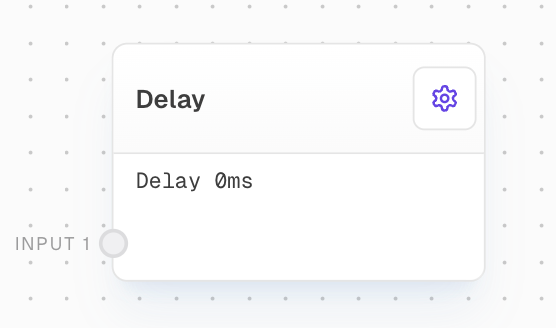
The Delay Block introduces a specified pause in the execution of your workflow. It accepts any number of inputs and, after the set delay, passes these input values to the outputs without modification. This block is particularly useful for controlling the timing and pacing of your workflow execution.
## Inputs
The delay time in milliseconds. This input is only available if the "Use Delay Input" setting is enabled.
The ith input that will be passed to the corresponding output. The number of inputs is dynamic based on the connections made to the block.
## Outputs
The ith output from the execution of the delay block. Each output corresponds to its respective input and is returned after the specified delay. The number of outputs matches the number of inputs minus 1.
## Editor Settings
The delay time in milliseconds. This value is used if the "Use Delay Input" setting is disabled.
If enabled, adds a "Delay (ms)" input port that can override the delay time specified in settings.
## Example: Delaying a Message
1. Add a Text block to your flow and set its value to "Hello, World!".
2. Add a Delay block and set its "Delay" setting to 5000 (5 seconds).
3. Connect the output of the Text block to the first input of the Delay block.
4. Run the flow. You'll notice that the output of the Delay block appears after a 5-second pause.
## Error Handling
The Delay block is designed to handle inputs robustly and doesn't generate errors under normal circumstances. If a negative delay time is provided, it will be treated as zero, resulting in immediate execution.
## FAQ
If the delay time is set to zero, the Delay block will pass the input to the output immediately, effectively acting as a pass-through block.
Yes, the Delay block can be used to throttle API calls. For instance, if you have a workflow that makes frequent API calls, you can use the Delay block to ensure that calls are not made more often than a specified interval.
## See Also
* [Passthrough Block](./passthrough)
* [Race Inputs Block](./race-inputs)
## Overview
The Delay Block introduces a specified pause in the execution of your workflow. It accepts any number of inputs and, after the set delay, passes these input values to the outputs without modification. This block is particularly useful for controlling the timing and pacing of your workflow execution.
## Inputs
The delay time in milliseconds. This input is only available if the "Use Delay Input" setting is enabled.
The ith input that will be passed to the corresponding output. The number of inputs is dynamic based on the connections made to the block.
## Outputs
The ith output from the execution of the delay block. Each output corresponds to its respective input and is returned after the specified delay. The number of outputs matches the number of inputs minus 1.
## Editor Settings
The delay time in milliseconds. This value is used if the "Use Delay Input" setting is disabled.
If enabled, adds a "Delay (ms)" input port that can override the delay time specified in settings.
## Example: Delaying a Message
1. Add a Text block to your flow and set its value to "Hello, World!".
2. Add a Delay block and set its "Delay" setting to 5000 (5 seconds).
3. Connect the output of the Text block to the first input of the Delay block.
4. Run the flow. You'll notice that the output of the Delay block appears after a 5-second pause.
## Error Handling
The Delay block is designed to handle inputs robustly and doesn't generate errors under normal circumstances. If a negative delay time is provided, it will be treated as zero, resulting in immediate execution.
## FAQ
If the delay time is set to zero, the Delay block will pass the input to the output immediately, effectively acting as a pass-through block.
Yes, the Delay block can be used to throttle API calls. For instance, if you have a workflow that makes frequent API calls, you can use the Delay block to ensure that calls are not made more often than a specified interval.
## See Also
* [Passthrough Block](./passthrough)
* [Race Inputs Block](./race-inputs)