> ## Documentation Index
> Fetch the complete documentation index at: https://docs.odella.ai/llms.txt
> Use this file to discover all available pages before exploring further.
# Extract with Regex Block
> Extract strings from input using regular expressions
 ## Overview
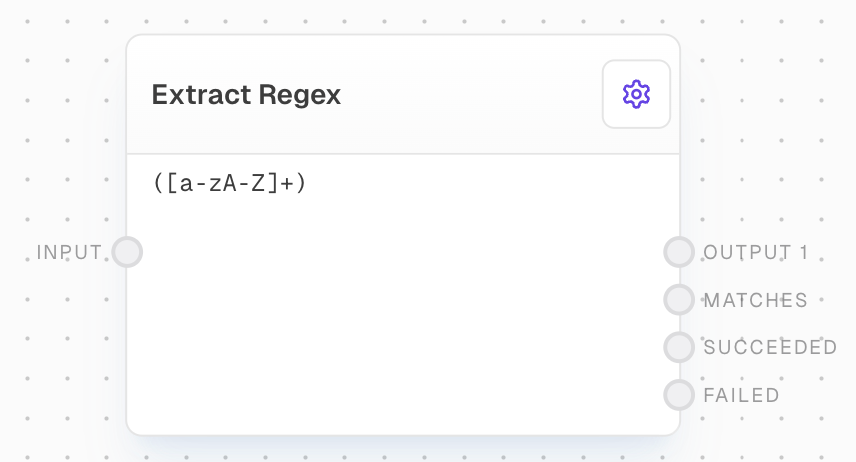
The Extract With Regex Block allows you to extract one or more strings from an input string using a regular expression. It's useful for parsing responses from Language Models (LLMs), extracting specific values from files, or any scenario where you need to match patterns in text.
## Key Features
* Extract multiple strings using capture groups
* Configurable error handling for failed matches
* Support for multiline mode
* Flexible output options including all matches and success/failure flags
## Inputs
The string to match the regex against. Non-string inputs will be coerced to strings.
The regular expression to use for matching. Only available when "Use Regex Input" is enabled in settings.
## Outputs
One output port per capture group in the regex, containing the matched content for that capture group.
An array of all matched strings from the first capture group.
True if the regex matched the input string, false otherwise.
True if the regex did not match the input string, false otherwise.
## Editor Settings
If enabled, the block will error if the regex doesn't match the input string.
Enables multiline mode for the regex, affecting `^` and `$` behavior.
The regular expression to use for matching.
When enabled, allows the regex to be provided via an input port instead of being set in the settings.
## Example: Extract a command from an LLM response
1. Create a Chat Block with a System Prompt:
```
Your reply can initiate commands, for example `!hello` will cause "Hello world" to appear for the user. Try it out now!
```
2. Add an Extract With Regex Block and connect the Chat Block's output to its input.
3. Set the Regex to `!([a-zA-Z]+)`.
4. Connect the `Output 1` port to a Text Block to display the matched command.
## Error Handling
* The block will error if the input string is not provided or if the regex is invalid.
* If "Error on failed" is enabled, the block will error when the regex doesn't match the input.
## FAQ
For special characters like newlines, you can include them literally in the regex editor. They will be preserved in the regular expression.
## See Also
* [Extract Object Path Block](/block-reference/modifiers/extract-object-path)
* [Match Block](/block-reference/logic/match)
## Overview
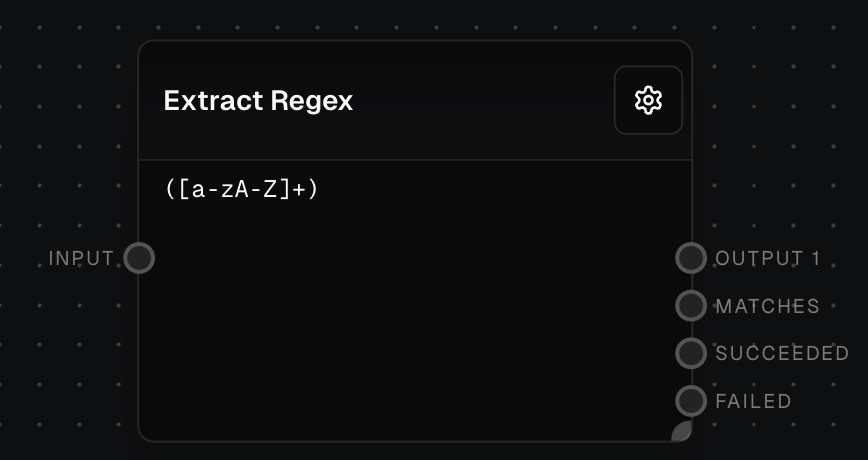
The Extract With Regex Block allows you to extract one or more strings from an input string using a regular expression. It's useful for parsing responses from Language Models (LLMs), extracting specific values from files, or any scenario where you need to match patterns in text.
## Key Features
* Extract multiple strings using capture groups
* Configurable error handling for failed matches
* Support for multiline mode
* Flexible output options including all matches and success/failure flags
## Inputs
The string to match the regex against. Non-string inputs will be coerced to strings.
The regular expression to use for matching. Only available when "Use Regex Input" is enabled in settings.
## Outputs
One output port per capture group in the regex, containing the matched content for that capture group.
An array of all matched strings from the first capture group.
True if the regex matched the input string, false otherwise.
True if the regex did not match the input string, false otherwise.
## Editor Settings
If enabled, the block will error if the regex doesn't match the input string.
Enables multiline mode for the regex, affecting `^` and `$` behavior.
The regular expression to use for matching.
When enabled, allows the regex to be provided via an input port instead of being set in the settings.
## Example: Extract a command from an LLM response
1. Create a Chat Block with a System Prompt:
```
Your reply can initiate commands, for example `!hello` will cause "Hello world" to appear for the user. Try it out now!
```
2. Add an Extract With Regex Block and connect the Chat Block's output to its input.
3. Set the Regex to `!([a-zA-Z]+)`.
4. Connect the `Output 1` port to a Text Block to display the matched command.
## Error Handling
* The block will error if the input string is not provided or if the regex is invalid.
* If "Error on failed" is enabled, the block will error when the regex doesn't match the input.
## FAQ
For special characters like newlines, you can include them literally in the regex editor. They will be preserved in the regular expression.
## See Also
* [Extract Object Path Block](/block-reference/modifiers/extract-object-path)
* [Match Block](/block-reference/logic/match)