> ## Documentation Index
> Fetch the complete documentation index at: https://docs.odella.ai/llms.txt
> Use this file to discover all available pages before exploring further.
# Simple Flow
> Learn how to create and run a simple flow in Odella
1. Open the flows tab in the sidebar
2. Find the `1. Simple Flow` folder
3. Click on the `Simple Flow` flow to open it
You should see a flow that looks like this:
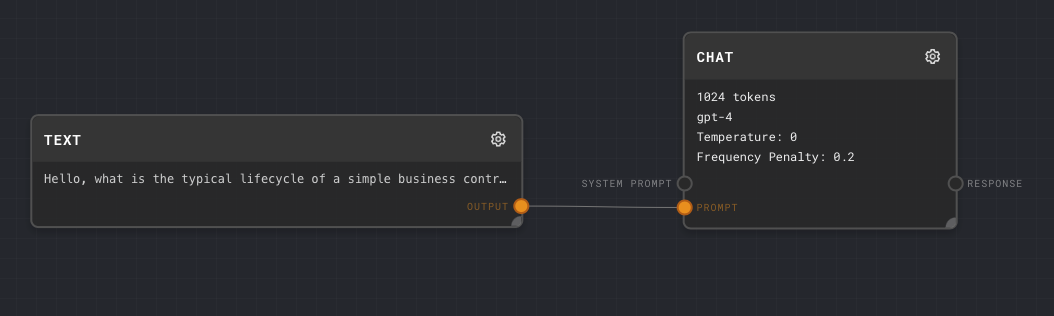 This flow consists of two blocks:
Allows you to input text
Processes the text using AI
## Running the Flow
1. Find the green run button in the top right corner of the flow
2. Click the button to run the flow
This flow consists of two blocks:
Allows you to input text
Processes the text using AI
## Running the Flow
1. Find the green run button in the top right corner of the flow
2. Click the button to run the flow
 After running, you should see something like this:
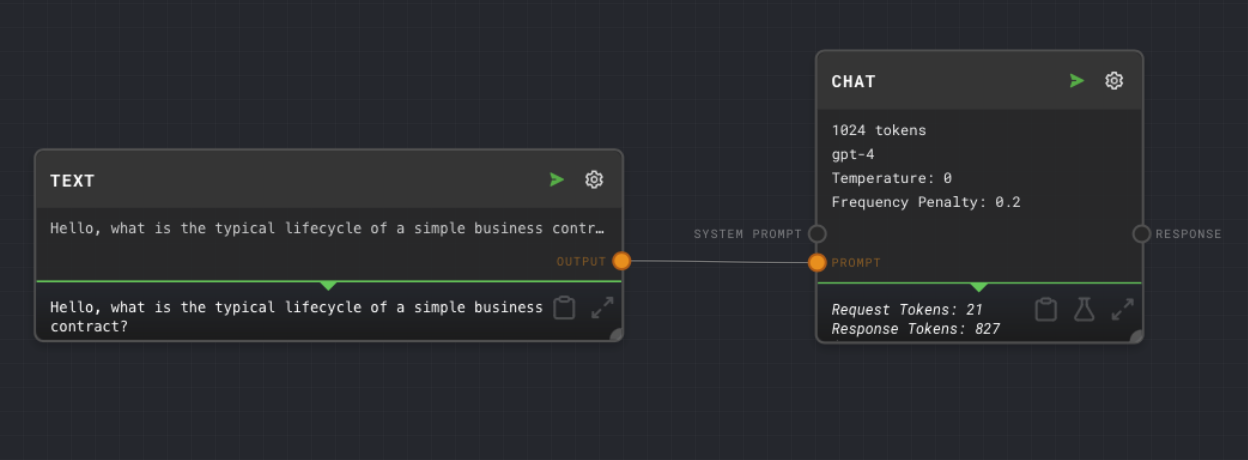 When you run the flow, the text block sends its content to the chat block. The chat block then uses AI to process this text and generate a response.
## Experimenting with the Flow
To modify a block's settings, click the edit gear icon in the top right corner of the block.
1. Edit the text block
2. Type a new question like "What's the difference between a NDA and a MNDA?"
3. Run the flow again
4. Observe how the chat block responds with new information
1. Edit the chat block
2. Change the max tokens to 256
3. Run the flow again
4. Notice how the response is shorter
1. Edit the chat block
2. Set the temperature to 1
3. Run the flow again
4. Observe how the responses become more varied
By experimenting with these settings, you can see how different parameters affect the AI's responses in your workflow.
When you run the flow, the text block sends its content to the chat block. The chat block then uses AI to process this text and generate a response.
## Experimenting with the Flow
To modify a block's settings, click the edit gear icon in the top right corner of the block.
1. Edit the text block
2. Type a new question like "What's the difference between a NDA and a MNDA?"
3. Run the flow again
4. Observe how the chat block responds with new information
1. Edit the chat block
2. Change the max tokens to 256
3. Run the flow again
4. Notice how the response is shorter
1. Edit the chat block
2. Set the temperature to 1
3. Run the flow again
4. Observe how the responses become more varied
By experimenting with these settings, you can see how different parameters affect the AI's responses in your workflow.