> ## Documentation Index
> Fetch the complete documentation index at: https://docs.odella.ai/llms.txt
> Use this file to discover all available pages before exploring further.
# Dynamic Prompting
In this section, we'll explore how to create dynamic prompts and use various block types in Odella.
## Getting Started
1. In the sidebar, locate the "Flows" tab.
2. Find the folder named "2. Dynamic Prompting".
3. Open the "Dynamic Prompting" flow.
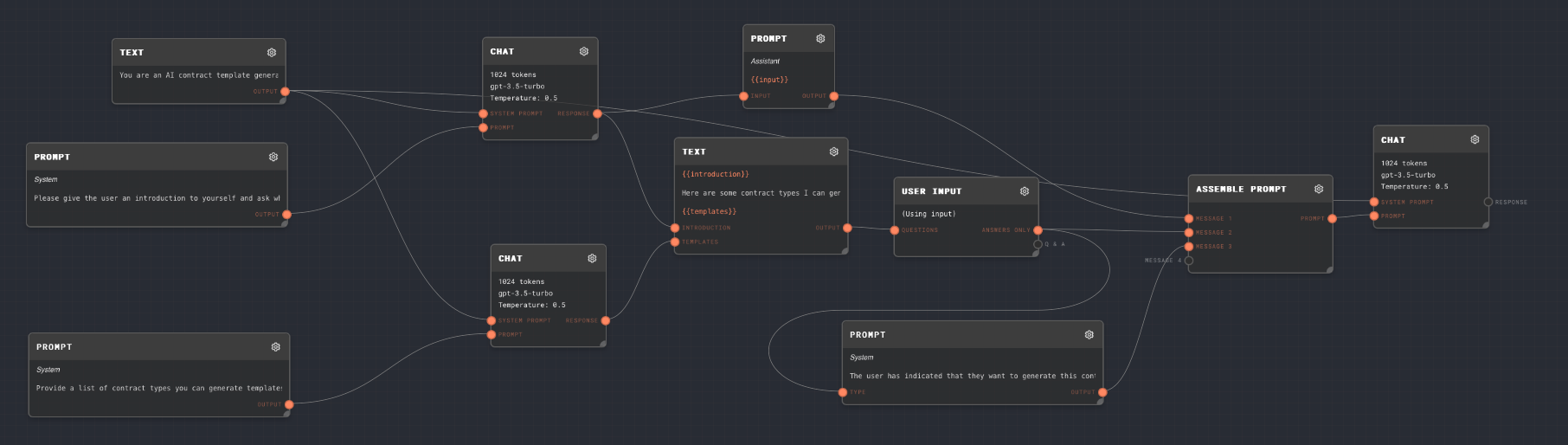
You should see a flow that looks like this:
 ## Running the Flow
1. Click the "Run" button to start the flow.
2. You'll see two Chat Blocks running at the same time.
3. A user input prompt will appear, asking you to choose a contract type.
4. Enter one of the listed contract types and submit.
5. The final Chat Block will generate a template for your chosen contract type.
## Understanding the Flow
Let's break down this flow into simpler parts:
### 1. Setup
## Running the Flow
1. Click the "Run" button to start the flow.
2. You'll see two Chat Blocks running at the same time.
3. A user input prompt will appear, asking you to choose a contract type.
4. Enter one of the listed contract types and submit.
5. The final Chat Block will generate a template for your chosen contract type.
## Understanding the Flow
Let's break down this flow into simpler parts:
### 1. Setup
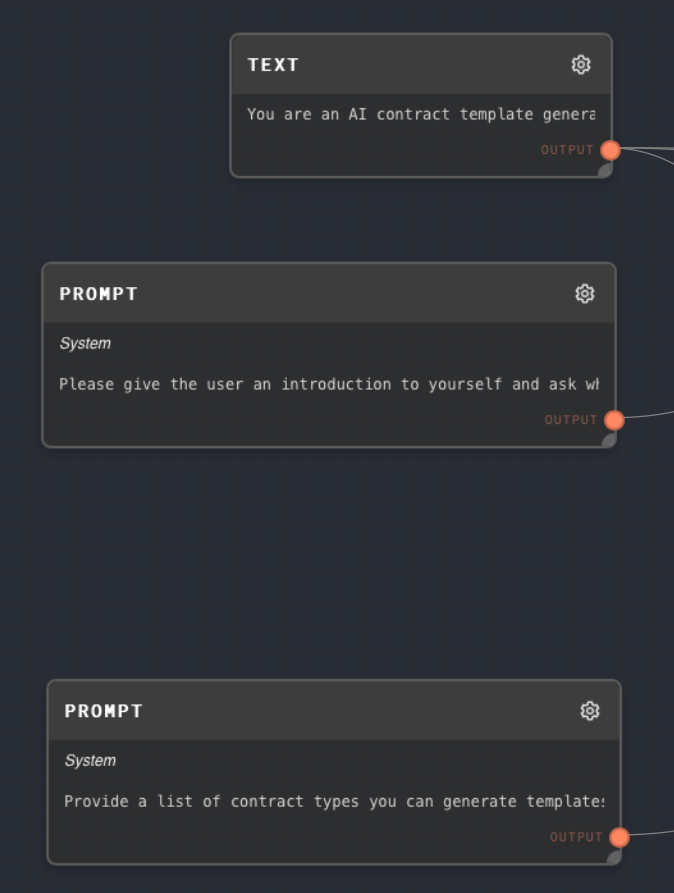 We start with three blocks:
* A Text Block for the system prompt
* Two Prompt Blocks to guide the AI's responses
### 2. Combining Outputs
After the initial chats, we use a Text Block to combine their outputs into one message.
### 3. User Input
We start with three blocks:
* A Text Block for the system prompt
* Two Prompt Blocks to guide the AI's responses
### 2. Combining Outputs
After the initial chats, we use a Text Block to combine their outputs into one message.
### 3. User Input
 We use a User Input Block to ask the user which contract type they want. The question is created dynamically based on the previous outputs.
### 4. Final Response
We use a User Input Block to ask the user which contract type they want. The question is created dynamically based on the previous outputs.
### 4. Final Response
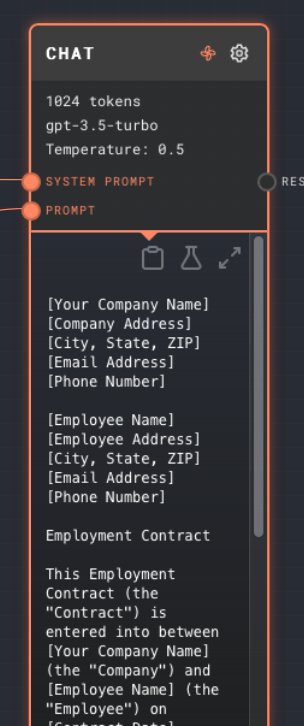 The flow ends with a final Chat Block that generates the contract template based on the user's choice.
## Key Concept: Dynamic Prompting
Dynamic prompting allows us to create flexible, context-aware interactions. In this flow, we use it to:
1. Combine AI-generated introductions and contract lists
2. Create a personalized user input prompt
3. Generate a specific contract template based on user input
By using dynamic prompts, we can create more interactive and responsive workflows in Odella.
The flow ends with a final Chat Block that generates the contract template based on the user's choice.
## Key Concept: Dynamic Prompting
Dynamic prompting allows us to create flexible, context-aware interactions. In this flow, we use it to:
1. Combine AI-generated introductions and contract lists
2. Create a personalized user input prompt
3. Generate a specific contract template based on user input
By using dynamic prompts, we can create more interactive and responsive workflows in Odella.