> ## Documentation Index
> Fetch the complete documentation index at: https://docs.odella.ai/llms.txt
> Use this file to discover all available pages before exploring further.
# Working with Flows
> Master the art of creating, managing, and executing AI-powered workflows in Odella
Flows are the cornerstone of Odella, representing sophisticated business processes and AI-powered workflows that revolutionise legal task automation.
A Odella project is a collection of multiple flows. Each flow serves as a visual representation of a legal task or process, constructed using interconnected blocks that collaborate to achieve specific outcomes.
## Understanding Flows
Flows in Odella are designed to streamline and accelerate your legal work. They function as a chain of intelligent building blocks, with each block performing a specialised task. Information cascades through these blocks from left to right, enabling you to craft smart, AI-powered workflows without any coding expertise.
Here's a simplified model of how a flow operates:
1. It initiates with "starter" blocks that require no input to begin.
2. As each block completes its task, it transmits its results to the subsequent connected blocks.
3. A block remains dormant until it receives all necessary information to commence its operation.
4. This process continues, with some blocks operating concurrently when possible, until the entire flow reaches completion.
This architecture allows for the creation of sophisticated AI workflows, where the output of one AI task becomes the catalyst for the next, facilitating intelligent decision-making and automatic task completion.
## Creating a New Workflow
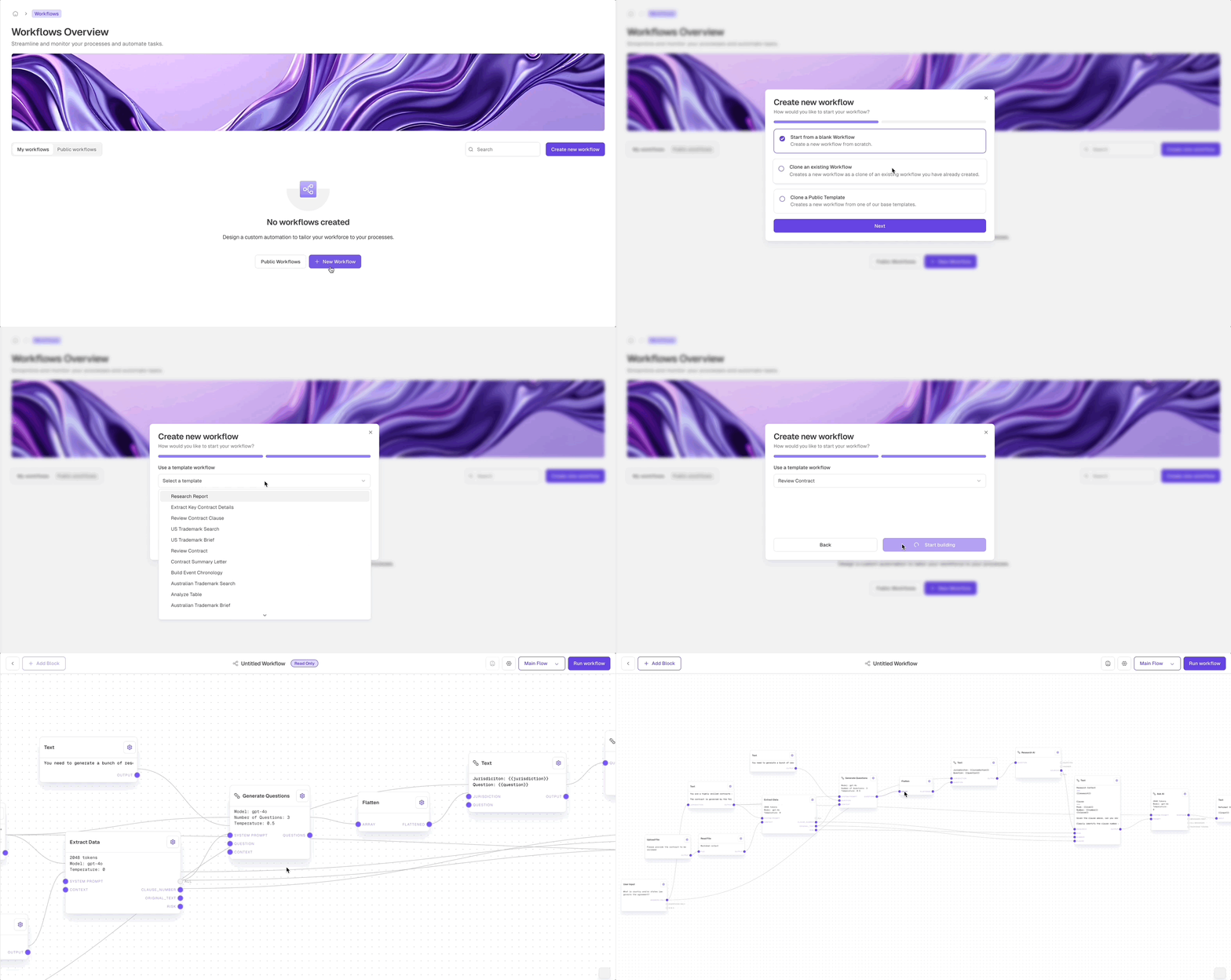
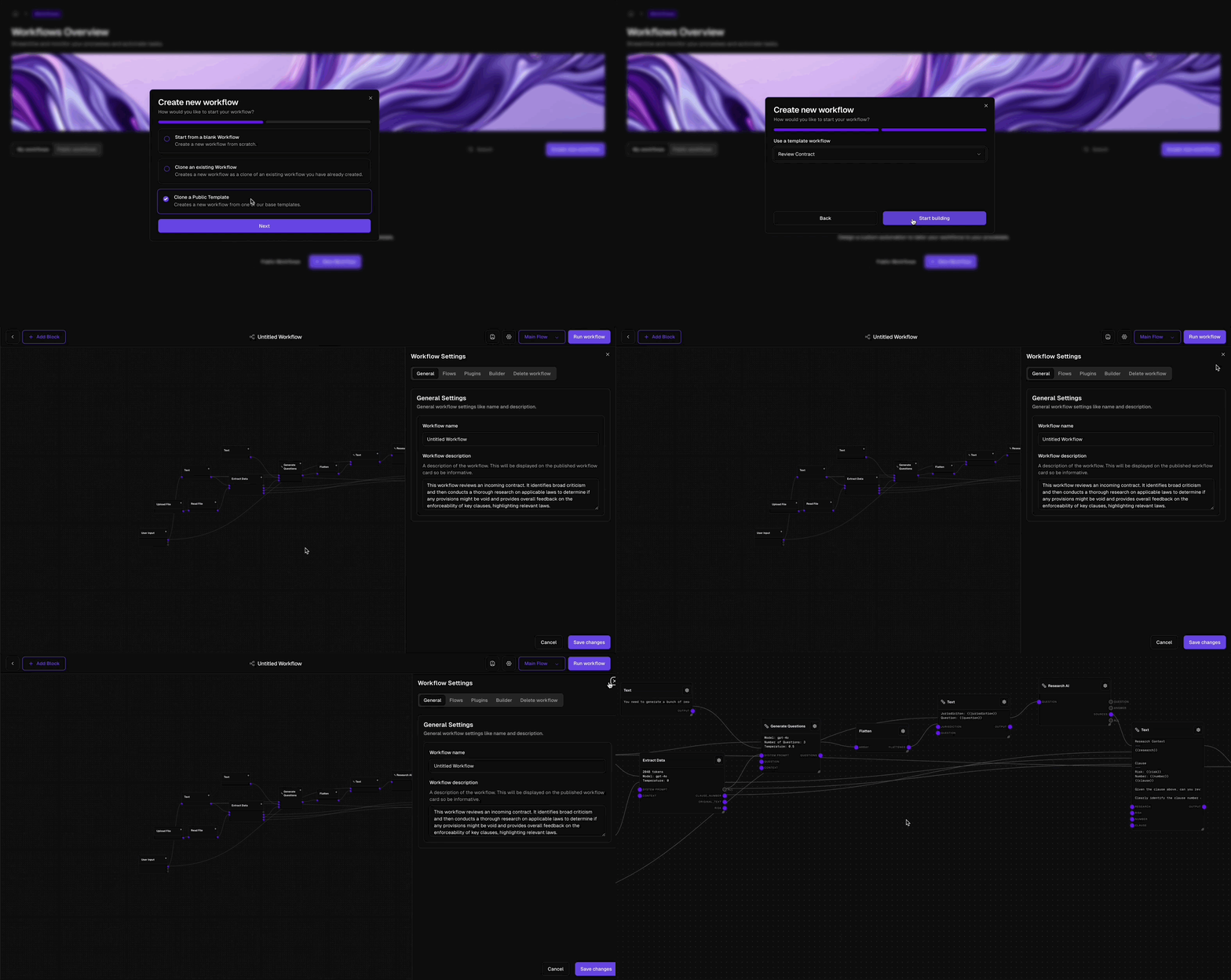 Click the "Create new workflow" button in the top right corner of the Workflows Overview page.
In the new window, select from one of three options:
* "Start from a blank Workflow" to create a new workflow from scratch
* "Clone an existing Workflow" to create a copy of a workflow you've already made
* "Clone a Public Template" to begin with one of our pre-built base templates
Provide essential information such as name and description for your workflow.
Click "Next" to proceed to the workflow editor.
Click "Start building" to commence creating your new workflow.
Your newly created workflow will now appear in the "My workflows" list on the Workflows Overview page, ready for you to start constructing your AI-powered process.
## Removing a Flow
Deleting a flow is an irreversible action. Please exercise caution and ensure you want to proceed before deletion.
Click the "Create new workflow" button in the top right corner of the Workflows Overview page.
In the new window, select from one of three options:
* "Start from a blank Workflow" to create a new workflow from scratch
* "Clone an existing Workflow" to create a copy of a workflow you've already made
* "Clone a Public Template" to begin with one of our pre-built base templates
Provide essential information such as name and description for your workflow.
Click "Next" to proceed to the workflow editor.
Click "Start building" to commence creating your new workflow.
Your newly created workflow will now appear in the "My workflows" list on the Workflows Overview page, ready for you to start constructing your AI-powered process.
## Removing a Flow
Deleting a flow is an irreversible action. Please exercise caution and ensure you want to proceed before deletion.
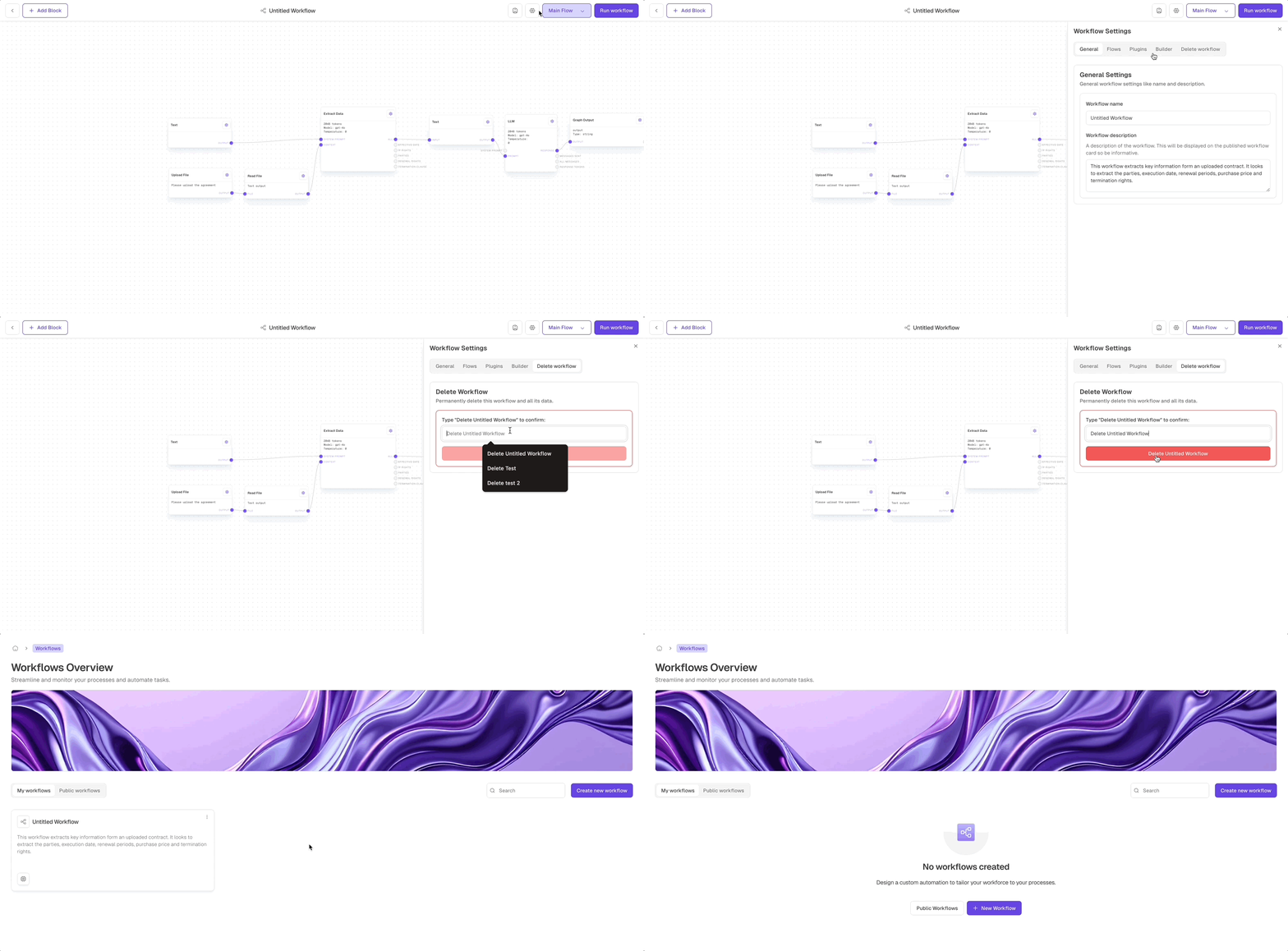
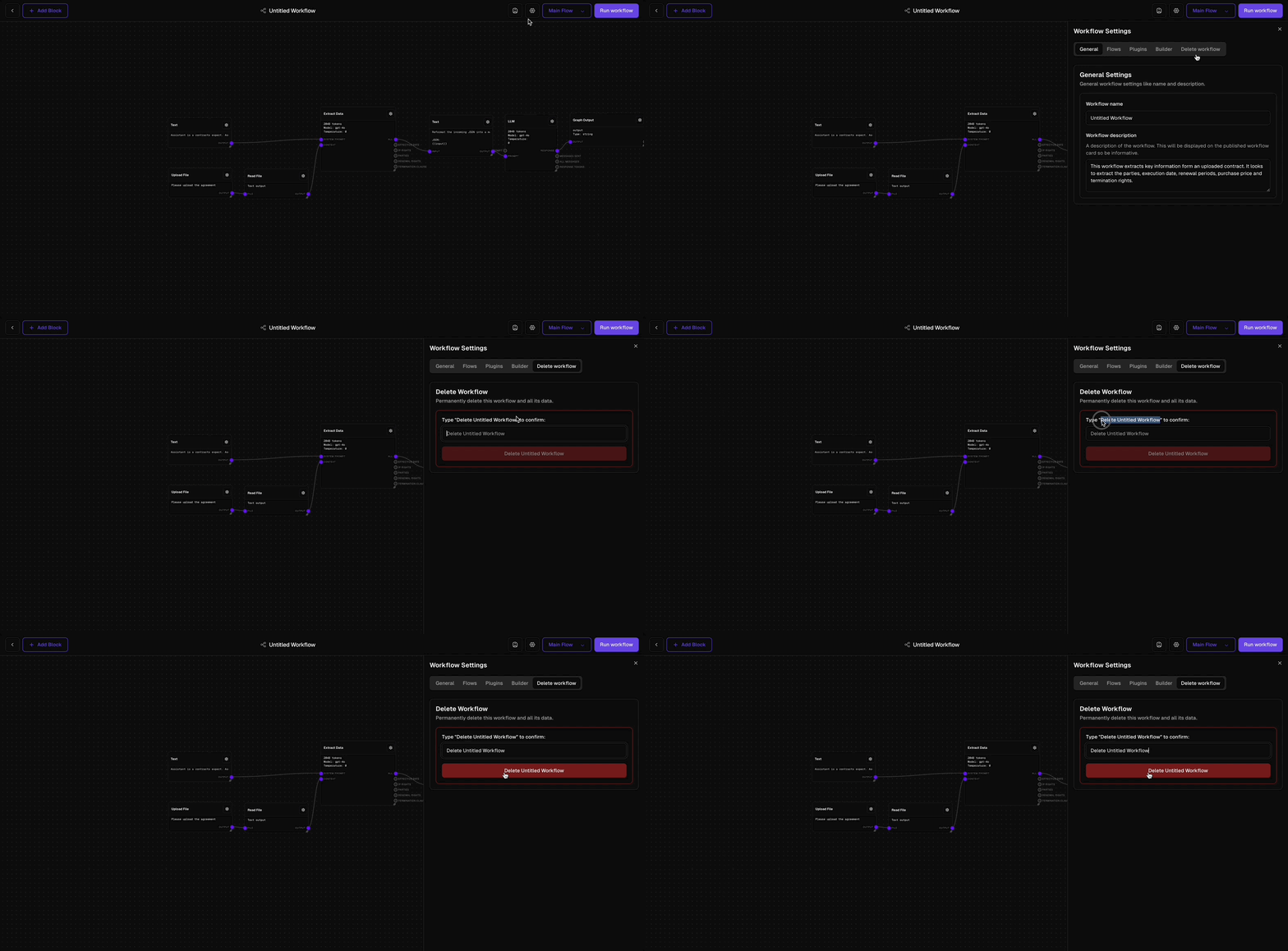 1. Navigate to the card representing the workflow you wish to delete.
2. Click on the workflow to open its details.
3. On the workflow screen, locate and click the settings icon (typically a cog or gear symbol).
4. In the settings menu, find and select the 'Delete Workflow' option.
5. Confirm the deletion, acknowledging that this action will permanently remove the workflow and all associated data.
## Starting a Flow
1. Navigate to the card representing the workflow you wish to delete.
2. Click on the workflow to open its details.
3. On the workflow screen, locate and click the settings icon (typically a cog or gear symbol).
4. In the settings menu, find and select the 'Delete Workflow' option.
5. Confirm the deletion, acknowledging that this action will permanently remove the workflow and all associated data.
## Starting a Flow
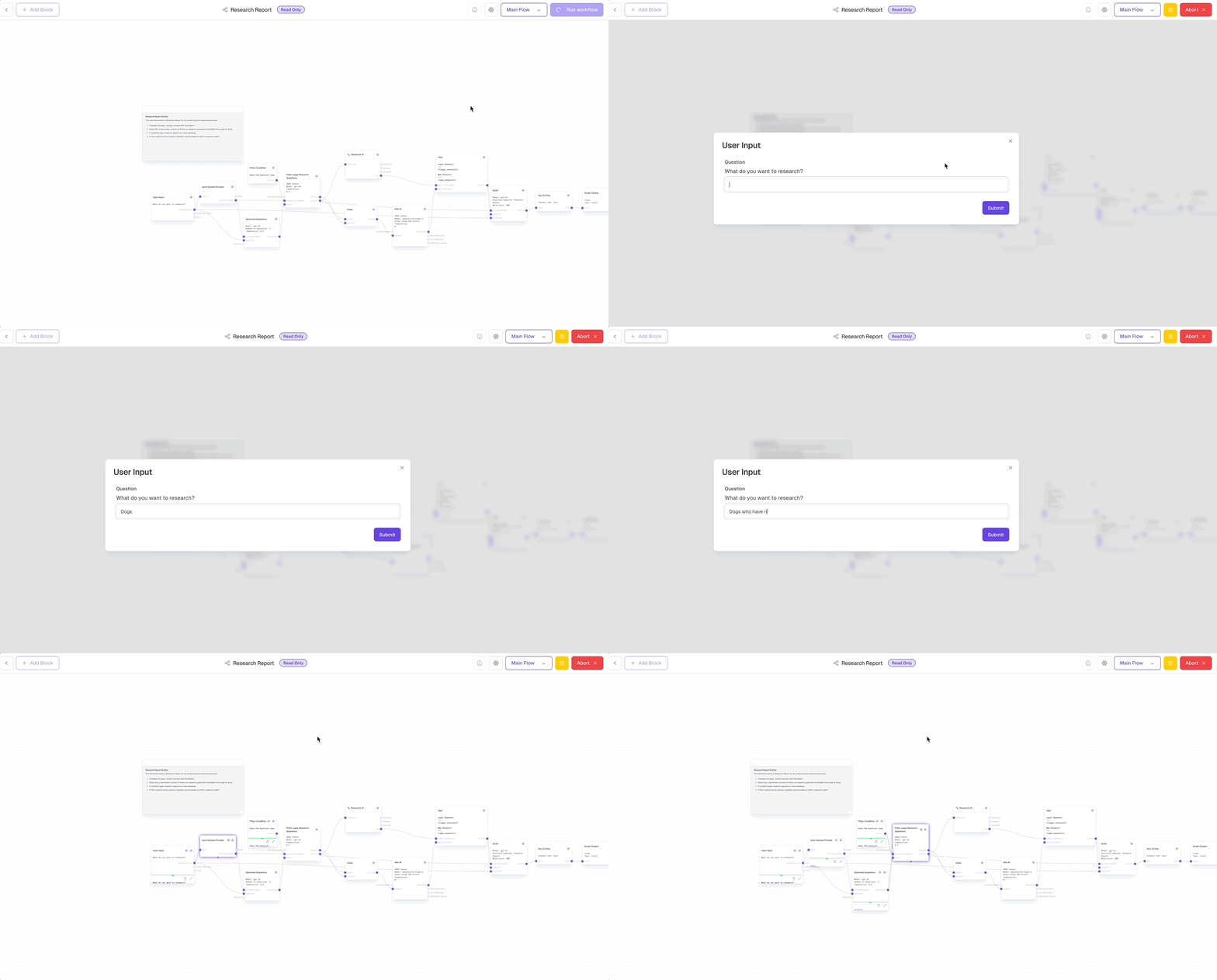
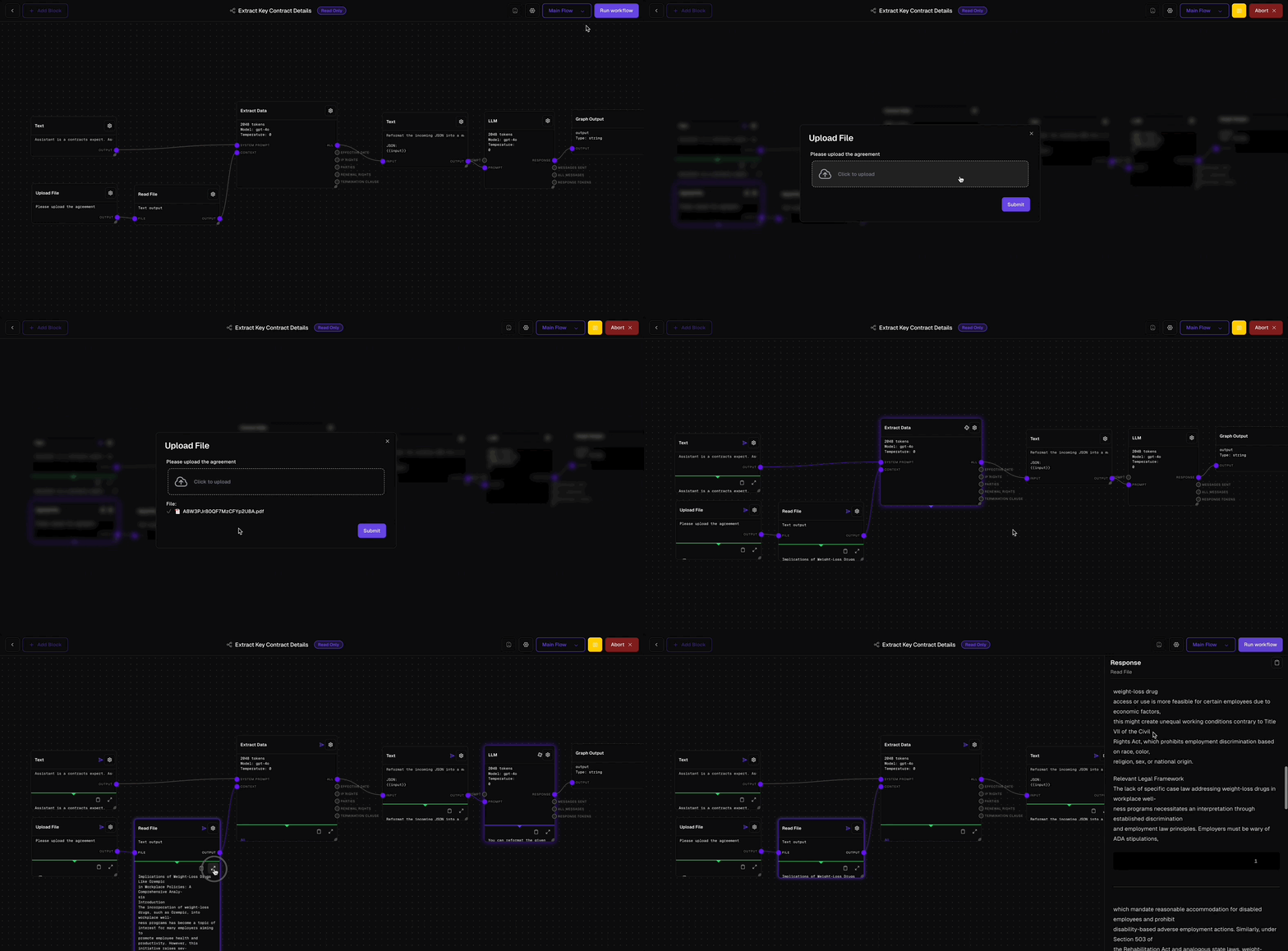 To run the currently selected flow, click the **Run** button located in the top right corner of the workflow page. You can observe the flow's execution in real-time, monitoring how data traverses through your AI chain.
## Flow Inputs and Outputs
Flows in Odella are designed as a graph-like structure, where inputs and outputs are determined by specific blocks within the workflow. This approach enhances flexibility and reusability across various scenarios.
### Flow Structure
Flows are composed of interconnected blocks, forming a directed graph where data flows from inputs to outputs through various processing steps.
### Inputs
[Input Blocks](/block-reference/io/graph-input) serve as entry points for data in your flow. They define the parameters your workflow requires to run.
Flows can have multiple input blocks, allowing for complex data ingestion scenarios.
### Outputs
[Output Blocks](/block-reference/io/graph-output) define the results your flow returns upon completion. They act as exit points for processed data.
Flows can have multiple output blocks, enabling diverse result structures.
### Data Flow
Data traverses through the workflow, being transformed and processed by various blocks before reaching the output. The graph-like structure allows for:
* Parallel processing
* Conditional branching
* Data aggregation and splitting
This flexible architecture enables the creation of complex, powerful workflows tailored to specific legal tasks and processes.
When designing flows, consider the critical information your workflow needs (inputs) and the valuable insights or actions it should generate (outputs).
## Best Practices for Designing Flows
Begin with a basic workflow and incrementally introduce complexity as needed.
Assign clear, meaningful names to your flows and blocks that reflect their purpose.
Utilise comments or documentation blocks to elucidate the purpose and logic of your workflow.
Leverage the live debugging feature to ensure your flow behaves as expected with various inputs.
By mastering flows in Odella, you'll be equipped to create powerful, AI-driven workflows that automate complex legal tasks and significantly enhance your firm's efficiency.
To run the currently selected flow, click the **Run** button located in the top right corner of the workflow page. You can observe the flow's execution in real-time, monitoring how data traverses through your AI chain.
## Flow Inputs and Outputs
Flows in Odella are designed as a graph-like structure, where inputs and outputs are determined by specific blocks within the workflow. This approach enhances flexibility and reusability across various scenarios.
### Flow Structure
Flows are composed of interconnected blocks, forming a directed graph where data flows from inputs to outputs through various processing steps.
### Inputs
[Input Blocks](/block-reference/io/graph-input) serve as entry points for data in your flow. They define the parameters your workflow requires to run.
Flows can have multiple input blocks, allowing for complex data ingestion scenarios.
### Outputs
[Output Blocks](/block-reference/io/graph-output) define the results your flow returns upon completion. They act as exit points for processed data.
Flows can have multiple output blocks, enabling diverse result structures.
### Data Flow
Data traverses through the workflow, being transformed and processed by various blocks before reaching the output. The graph-like structure allows for:
* Parallel processing
* Conditional branching
* Data aggregation and splitting
This flexible architecture enables the creation of complex, powerful workflows tailored to specific legal tasks and processes.
When designing flows, consider the critical information your workflow needs (inputs) and the valuable insights or actions it should generate (outputs).
## Best Practices for Designing Flows
Begin with a basic workflow and incrementally introduce complexity as needed.
Assign clear, meaningful names to your flows and blocks that reflect their purpose.
Utilise comments or documentation blocks to elucidate the purpose and logic of your workflow.
Leverage the live debugging feature to ensure your flow behaves as expected with various inputs.
By mastering flows in Odella, you'll be equipped to create powerful, AI-driven workflows that automate complex legal tasks and significantly enhance your firm's efficiency.