

 Get Started
 Workforce
 Templates
 Documents
 Workflows
Before you begin
- Confirm you recognize the sender and expected document. Contact the sender separately if anything looks unexpected.
- Use the latest invitation and the account with the invited email address.
- Review the business terms and your organization’s requirements. Odella’s signing screen does not provide legal advice.
Review and sign
1
Open your invitation
Follow your own link and sign in when requested. Do not forward the link to someone else or use a colleague’s invitation.
2
Read the document and policy
Check the complete document, parties, and signature meaning. Read the displayed consent before proceeding. Ask the sender to correct any error rather than signing an incorrect version.
3
Complete your assigned fields
Follow the field navigation. Enter required answers and confirm the requested name or initials. Provide your signature, or explicitly select your saved signature where offered. Other people’s fields are not yours to complete. Signer email and date-signed values are recorded automatically on completion.
4
Review the final confirmation
Check your entries and finish using the signing control. Merely opening the document or choosing a saved signature does not complete signing.
5
Wait for the completed copy
Your part may finish before other recipients. Wait for all required signatures and final sealing, then use the available download control.
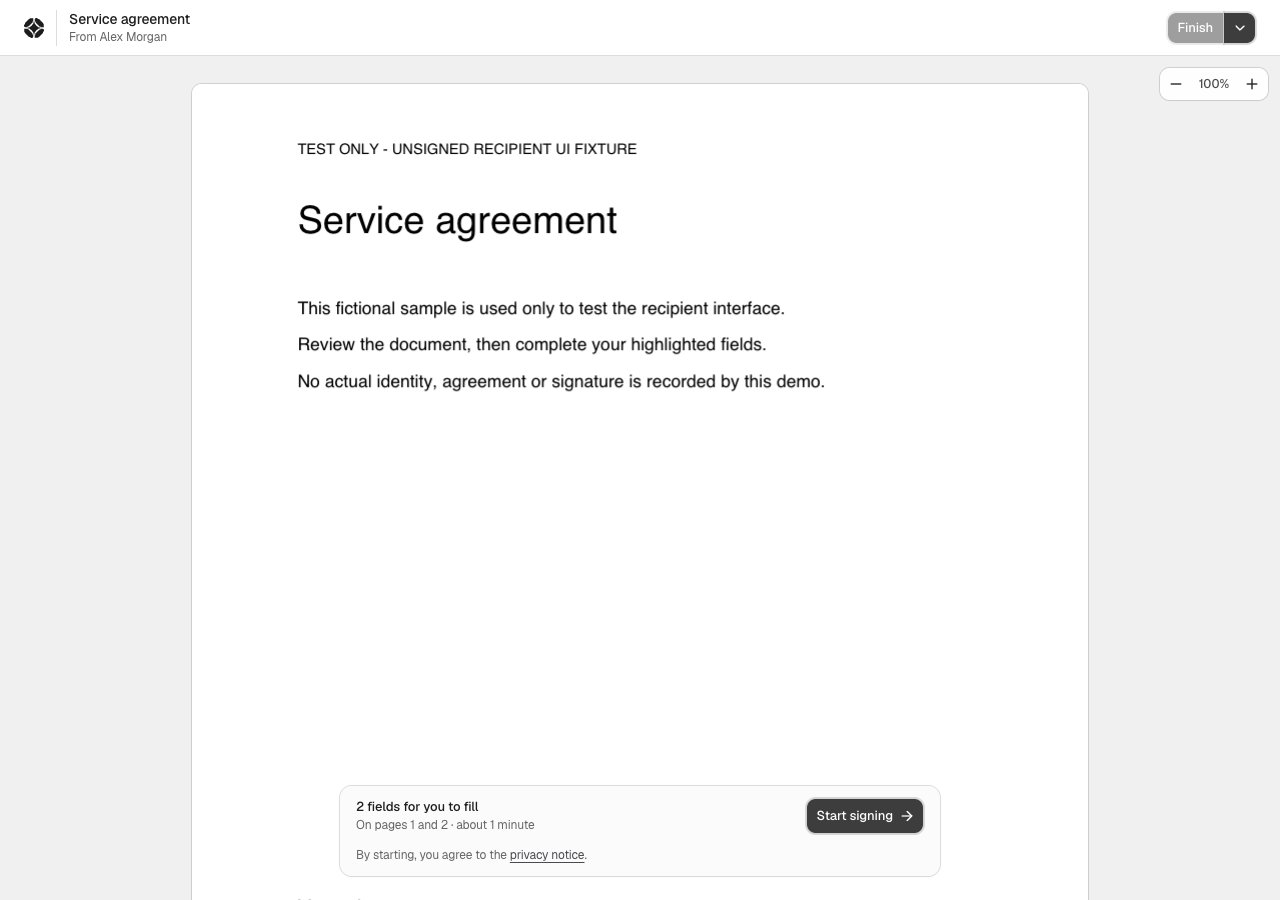
Recipient review and consent. Synthetic Storybook example; no real document or invitation.
Understand the result
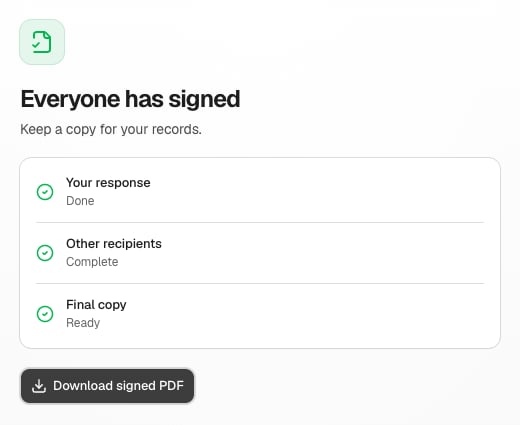
Final-copy screen. Synthetic Storybook example.
If you cannot continue
- Wrong account: Sign in with the invited email and reopen the latest invitation. Access to another Odella workspace does not make you the invited signer.
- Expired or invalid link: Ask the sender to check the existing request and provide a current invitation. Do not substitute another person’s link.
- Incorrect terms or recipient: Stop and contact the sender; decline where that control is available. Do not sign on the expectation that someone will edit the completed record.
- Service unavailable: Reopen the same request later and check its state before repeating a completion action.
- Download not ready: Check whether others still need to sign or whether final sealing is underway.