
Build a Customer operations worker that selected colleagues can use without giving them permission to change its security settings. Outcome: colleagues with the Support colleague role inside Customer operations can view, chat with, and request work from the worker. Its manager controls configuration. Connected writes require review during the pilot.
The manager and people with broad employee-administration access retain applicable access. This tutorial restricts ordinary colleagues; it does not create a boundary against your organization’s authorized administrators.

Before you start

Use an organization account and non-sensitive test data. You need permission to manage teams and roles, assign the worker’s manager, and manage its access. If a control is read-only, ask the person with that specific permission to complete the step. Have an AI Employee available and choose three test members: an intended user, a teammate without the required role, and someone outside the team. None should be the worker’s manager or a broad employee administrator.
1

Create the team

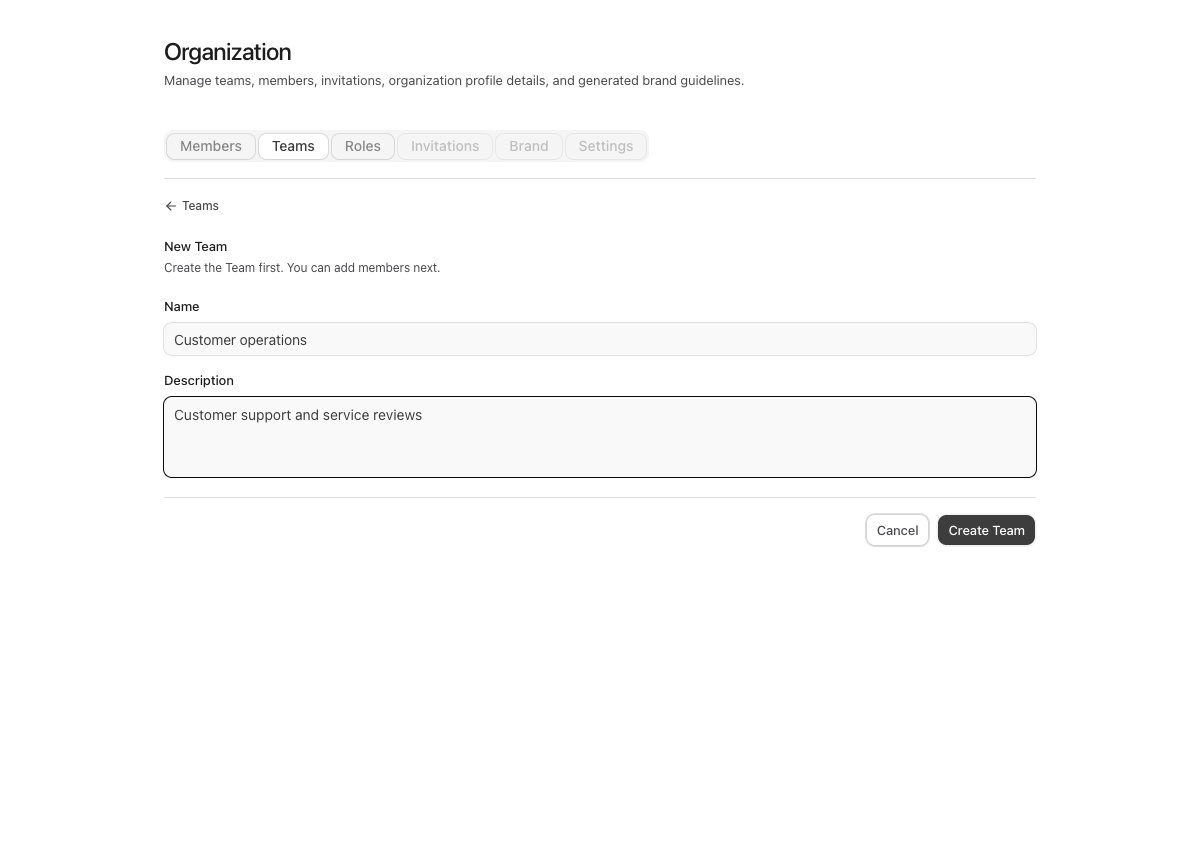
Open Account → Organization → Teams → New Team. Enter Customer operations and a description such as “Customer support and service reviews.” Select Create Team.
New Team form with the Customer operations name and a description of its responsibilities

Creating a team with synthetic Storybook example data.

Creating the team does not place every worker in it. You will choose this team on the worker’s Governance panel later.
2

Create a narrowly scoped permission role

Open Account → Organization → Roles → New role.
  1. Choose Team role, not Organization role, then Continue.
  2. Name it Support colleague. Describe when it should be assigned, then continue.
  3. In Choose capabilities, open the Employee category.
  4. Select View employee, Chat with employee, and Request work.
  5. Leave unrelated capabilities unselected and choose Create role.
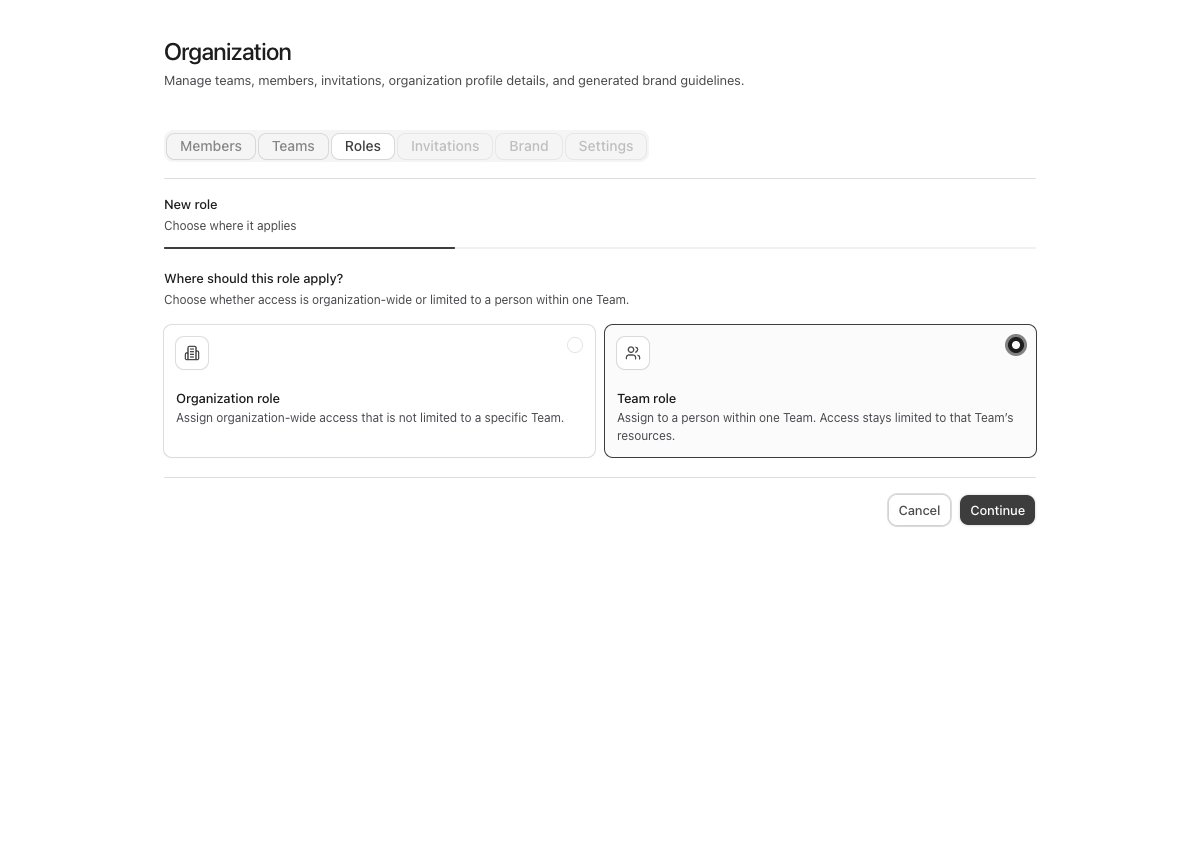
Role creation showing Team role selected instead of Organization role

Choose Team role to keep the assignment scoped to a team. Synthetic example data.
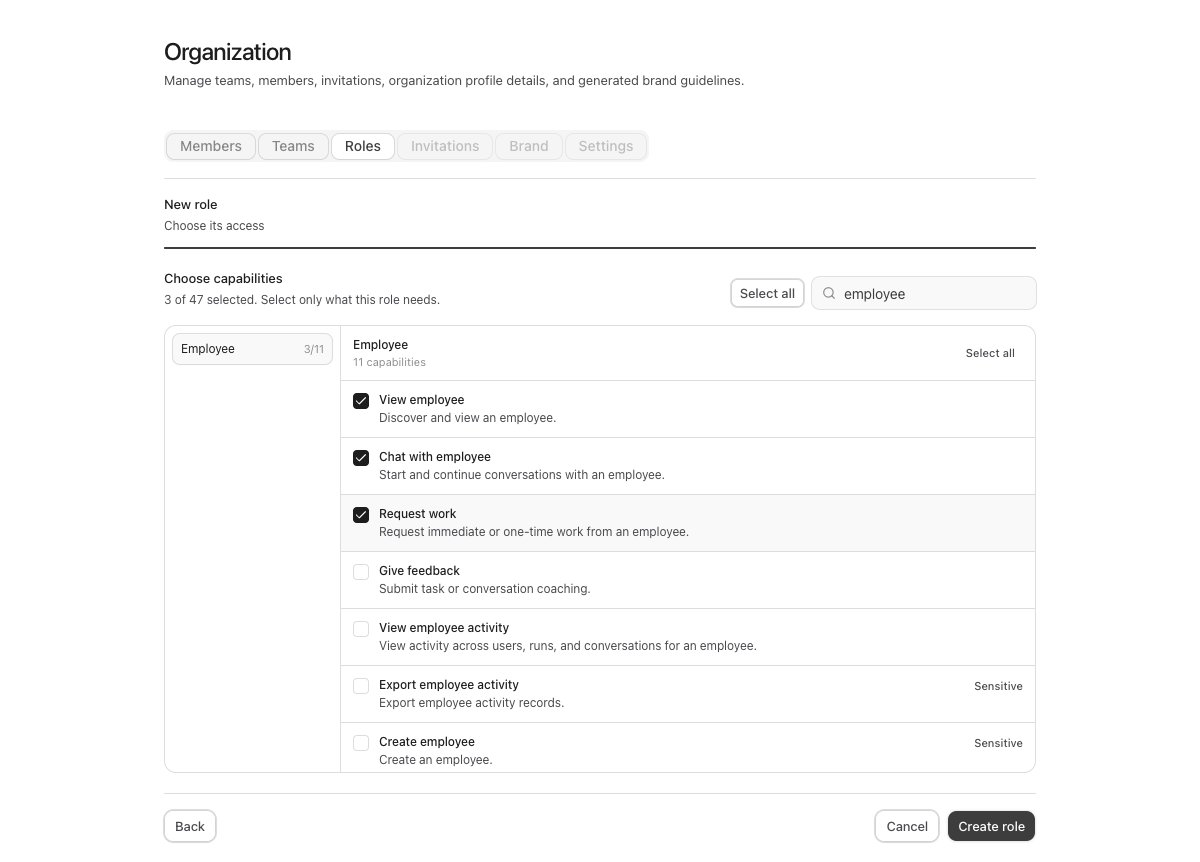
Support colleague role with View employee, Chat with employee, and Request work selected

Select the three capabilities needed for this example. Synthetic example data.

Do not use Select all for convenience. Activity viewing, exports, manager assignment, and access management are separate responsibilities. Worker configuration editing is controlled on the individual worker’s Governance panel.
3

Add members and assign their team roles
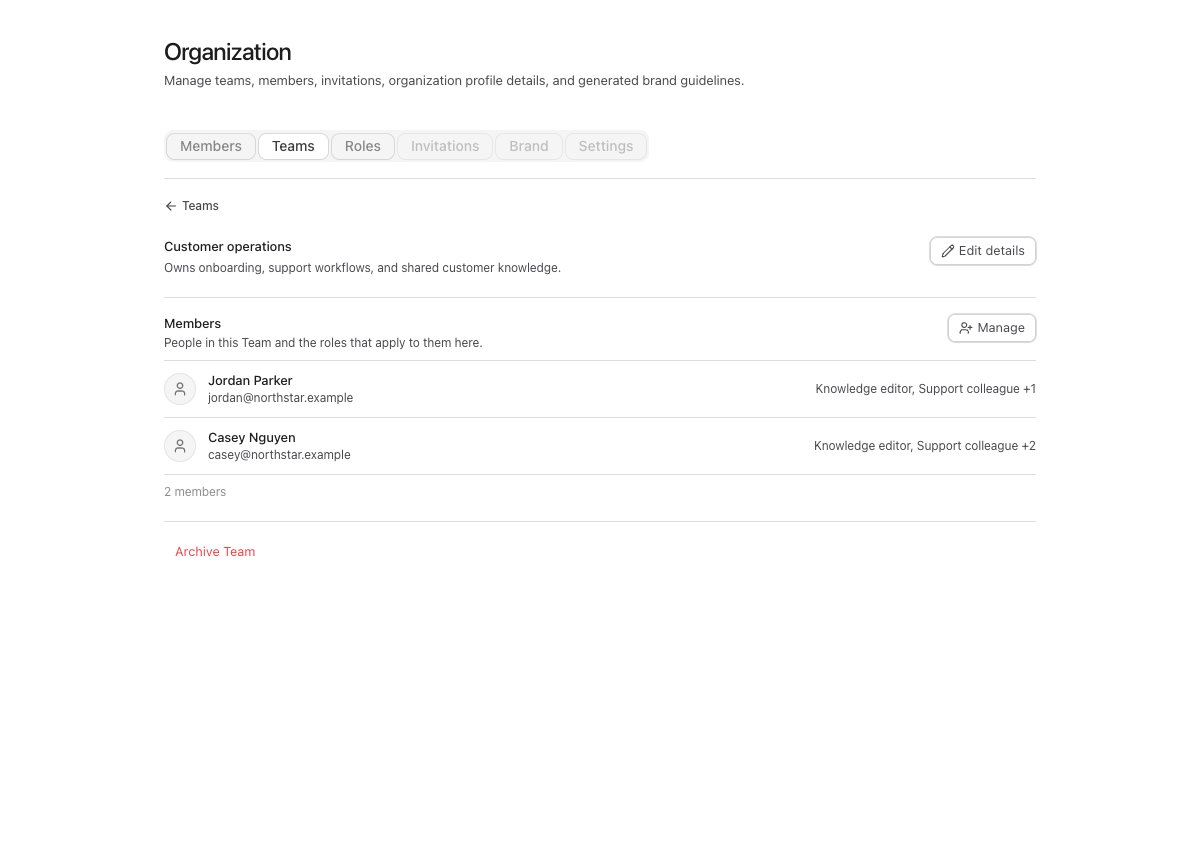
Return to Teams, open Customer operations, and select Manage in the members section.Add the intended user and the teammate you will use for the negative test. Choose Support colleague as the intended user’s role inside this team. Give the other teammate an appropriate different role that does not satisfy the worker’s required-role rule. Save the membership changes.
Customer operations team details with a members section and Manage control

Open Customer operations to manage its people. The local synthetic fixture uses the Support colleague role from this tutorial.
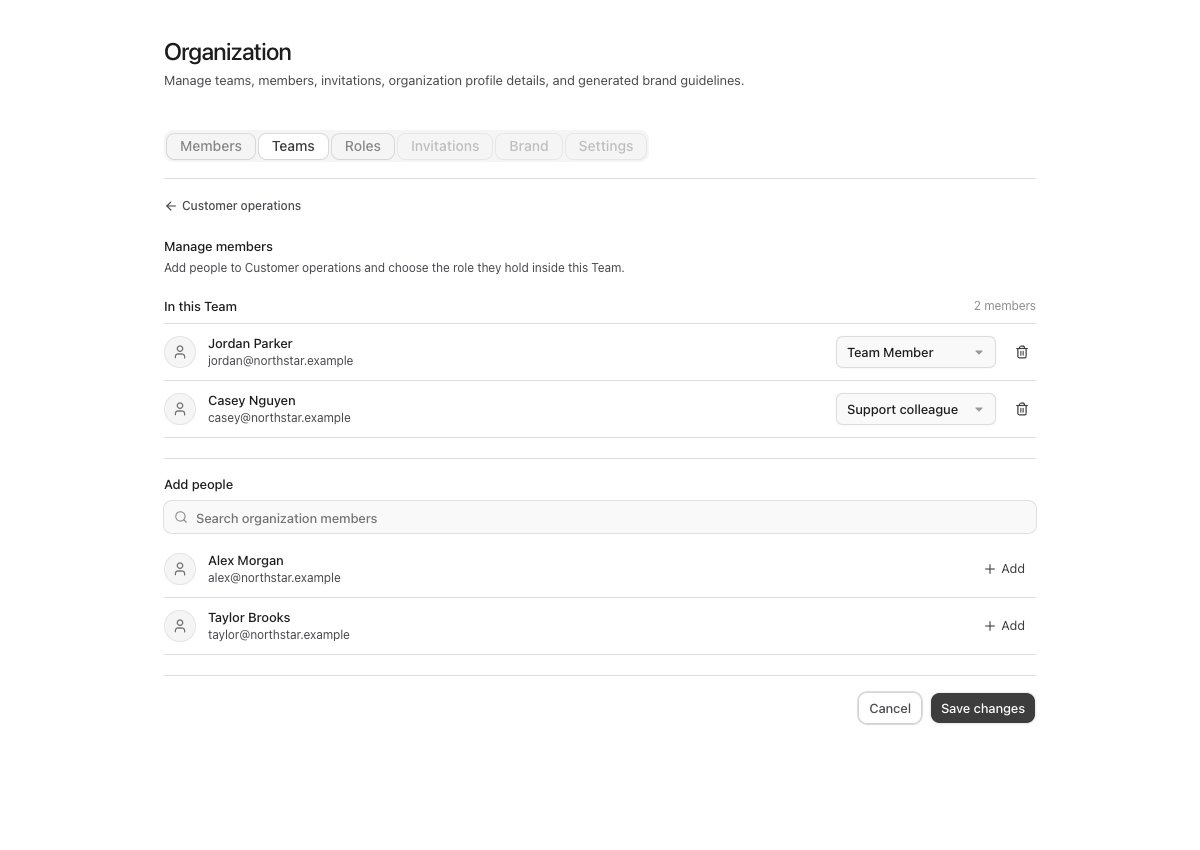
Team member management showing each person's role within Customer operations

Choose Support colleague for Casey inside Customer operations, then save the membership changes. Synthetic example data.

Assigning a team role to someone in another team is not the same as assigning it inside Customer operations.
4

Restrict the worker's audience

Open your AI Employee’s Settings → Governance.
  • Choose the accountable manager who should own configuration and approvals.
  • Under Access, choose Customer operations rather than everyone in the organization.
  • In the role selector, choose Support colleague rather than Any compatible role.
  • Leave Share conversations across members off for this pilot.
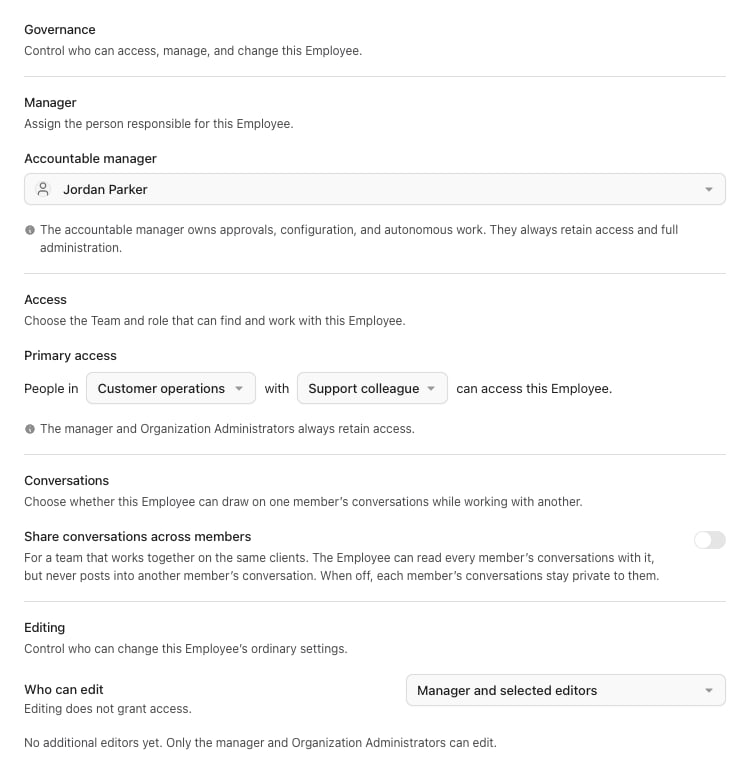
AI Employee Governance panel showing primary access and restricted editing controls

The synthetic tutorial fixture shows Customer operations with Support colleague, private conversation context, and no additional editors.

If Support colleague is missing, confirm that it is a Team role and contains View employee. A permission role belongs to people; selecting it here makes that role a requirement for the audience.
5

Limit who can change the worker

Under Who can edit, choose Manager and selected editors and remove any additional editors for the pilot. With no selected editors, only the manager and authorized organization administrators can edit. If a colleague needs to maintain instructions, add only that person or the appropriate team-role combination.Grant Working instructions only if that is their responsibility. Do not also grant Sending & approvals, Skills, tools & intelligence, or Who can contact the Employee unless needed.Select Save Changes and reload the panel to confirm the saved manager, team, role requirement, sharing choice, and editing policy. Selecting an editor does not grant worker access.
6

Set conservative connected-tool and messaging policies

Open Security & Privacy:
  • Set Inbound Access Policy to Account Members for the pilot. This is a channel rule, not a replacement for the worker’s internal team audience.
  • Set Tool approval policy to Approval-first while testing.
  • Set Outbound Messaging Policy to Ask every time, or Disabled if no outbound messaging is needed.
  • Review and remove saved allow exceptions that would undermine the pilot’s review policy.
Assign only the knowledge, workflows, and tools needed for customer support. Connect a test provider account with narrow provider-side permissions. Do not put passwords or API keys into chat or instructions; use supported connections and Vault.Connected-tool approval settings are not a universal browser-action approval policy. Review Tool and browser boundaries before enabling signed-in website work.

Verify allowed and denied behavior

Use separate member sessions. Do not verify everything while signed in as an administrator. For denial tests, also try a previously copied worker link; absence from a list is not sufficient evidence. Review other roles and explicit access grants if an unexpected user still qualifies. Confirm the saved tool policy, exceptions, and action type if an action proceeds without the expected review. Review the worker’s Activity Log and Approvals alongside these tests. A rejected attempt may not create the same activity record as completed work; do not assume the Activity Log is a complete security audit export.

Move from pilot to production

  • Record the manager, intended audience, editor areas, approved connections, and any saved exceptions.
  • Re-run the tests after changing roles, team membership, worker governance, or tool policies.
  • If you later choose Recommended tool approvals, test the exact operations you intend to allow; drafts and some low-risk actions can be treated differently from ordinary writes.
  • Review membership and exceptions periodically. Removing a team assignment does not remove an unrelated organization-level grant.
  • During handovers, reassign the manager and review unattended work and credential scope. See Manager responsibilities.
For a deeper explanation, see How access control works. Continue with Read-only Finance worker for a blocked-write example, Manager handover for transfers and offboarding, or Security review checklist to record your evidence.