

 Get Started
 Workforce
 Templates
 Documents
 Workflows
Review work before it takes effect
Approvals let a person review a proposed action before an AI Employee proceeds. The worker’s Security & Privacy policy, the action type, and account rules determine when review is required. Requests can appear in chat, task details, or an approval link delivered through a supported channel. Treat approval links as private.Review an approval
1
Open the current request
Follow the approval card or link. Confirm the worker and task are the ones
you expect. Read the remaining time or status, if shown.
2
Inspect the action
Check the affected application, recipients, data, files, and proposed
changes. For messages, inspect To, Cc, Bcc, body, and attachments. For
destructive operations, confirm exactly what will be removed.
3
Choose the available decision
Approve this action once, deny it, or save an eligible exception only when
you intend to permit future matching actions.
4
Check the result
Return to the task or conversation. Approval authorizes the action; it does
not guarantee the external service will complete it successfully.
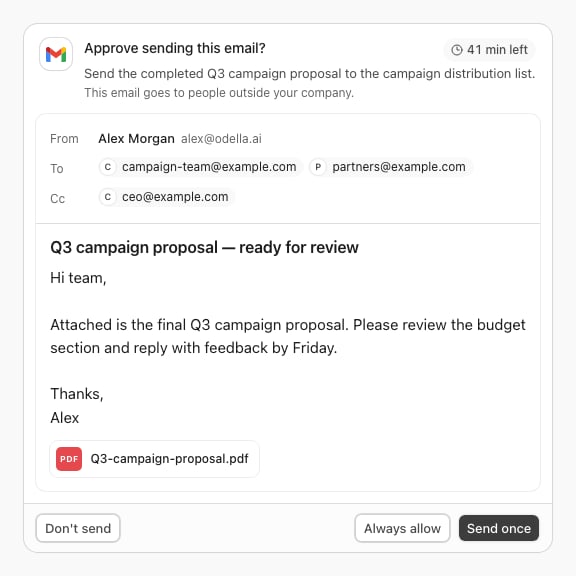
An email approval with sample recipients and an attachment, rendered from Storybook.
Choose once, always, or deny
Button wording varies with the action. Always allow is not available for every request and may require signing in to review the saved rule. Signing invitations require one-time review rather than a reusable signing-send exception.
Saved exceptions
Saved recipient and tool rules appear in the worker’s Security & Privacy settings. An authorized person can remove an exception to return future actions to the default policy. A saved rule is not a grant of access to an application or resource the worker cannot otherwise use. Prefer one-time approval while testing a new process. Save narrow exceptions only after confirming the repeated action is appropriate.When a request cannot be approved
- Expired or already resolved: Return to the task and check its current state. Use a fresh request rather than an old link.
- Document changed: Review the latest version and its recipients. Earlier approval does not authorize a different signing draft.
- Preview is loading or unavailable: Wait or retry. Some actions remain unavailable for approval until their review material is ready; denial can still be offered.
- Permission denied: Sign in with the intended account and ask the appropriate manager to review access.
- Approved, but task still failed: Inspect the execution error. Provider permissions, invalid data, or insufficient credit can still prevent completion.