

 Get Started
 Workforce
 Templates
 Documents
 Workflows
Decide who manages and uses a worker
In an organization account, open the AI Employee’s Settings → Governance. Governance controls are separate from the worker’s channel access and tool approval policy. You need the appropriate management permissions to change these settings. Some controls may remain read-only even when you can edit other worker settings.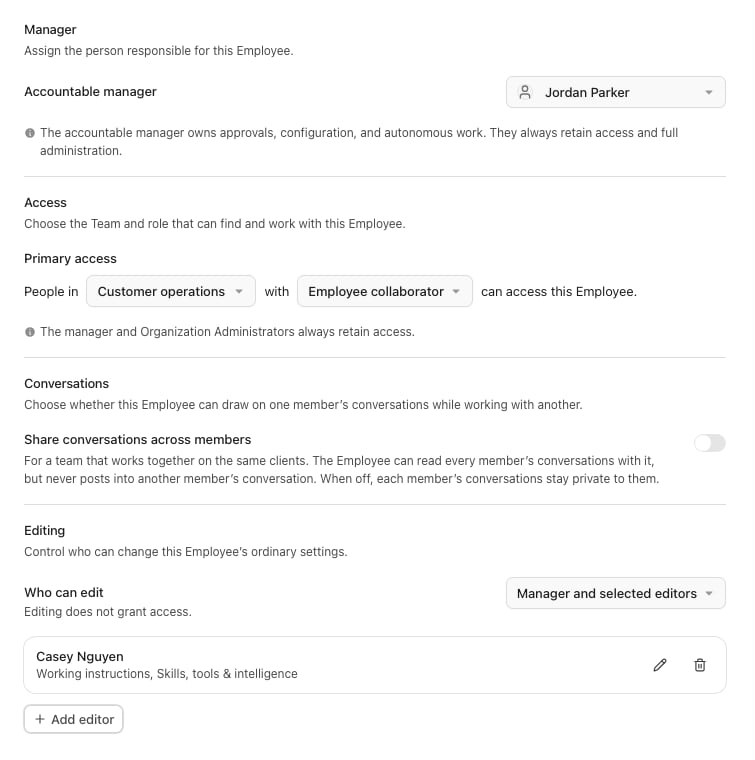
Restricted editing in the Governance panel, shown with Storybook example data.
Assign an accountable manager
Choose the account member responsible for the worker. The manager owns approvals, configuration, and autonomous work, and retains access and full worker administration. Organization administrators also retain access. This is an authorization responsibility, not just descriptive profile metadata. It does not grant unrelated billing permissions or access to every connected provider account. Reassign the manager deliberately during handovers. If the current assignment is unavailable or requires reassignment, resolve that state before relying on unattended work.Choose primary access
Under Access, select the audience and role requirements offered by the panel. For example, limit a customer-service worker to a particular team and qualifying role. Review the resulting audience before saving. A person outside it does not gain worker access just because you later add them as an editor.Control conversation sharing
Share conversations across members determines whether this worker can draw on one member’s conversations while working with another.- Off: Each member’s conversations with the worker stay private from other members’ worker context.
- On: The worker can read members’ conversations with it while helping others. It does not post into another member’s conversation.
Restrict editing
Use Who can edit to choose the offered editing policy, including manager and selected editors where needed. Selected editors can be people or team-role combinations. Editing can be limited by area:Editing permission does not grant access. Check both the audience and editing
rules when a colleague cannot change a worker’s settings.