

 Get Started
 Workforce
 Templates
 Documents
 Workflows
Batching allows you to process multiple inputs efficiently in Odella. This is particularly useful when you need to apply the same operation to a list of items.
Understanding Batching
Batching in Odella refers to the process of applying an operation to multiple inputs in sequence or parallel. Let’s explore this concept using the Ask AI node as an example.Using the Ask AI Node for Batching
The Ask AI block demonstrates batching by applying the same prompt to a list of inputs.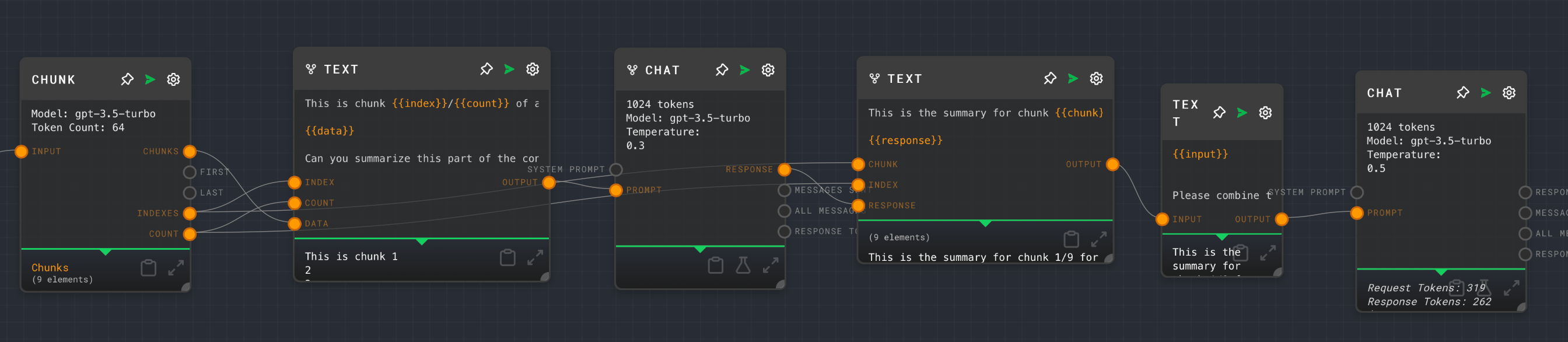
Setting Up the Batch
- Create an array of inputs you want to process.
- Connect this array to the Ask AI node.
- Enable “split mode” on the Ask AI node.
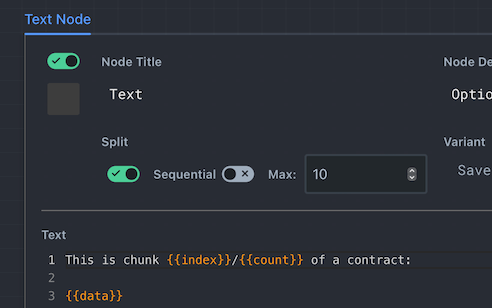
Configuring Split Mode
You can configure split mode with two main options:- Max: Specifies the maximum number of iterations.
- Sequential: Determines whether to process items one at a time or in parallel.
Running the Batch
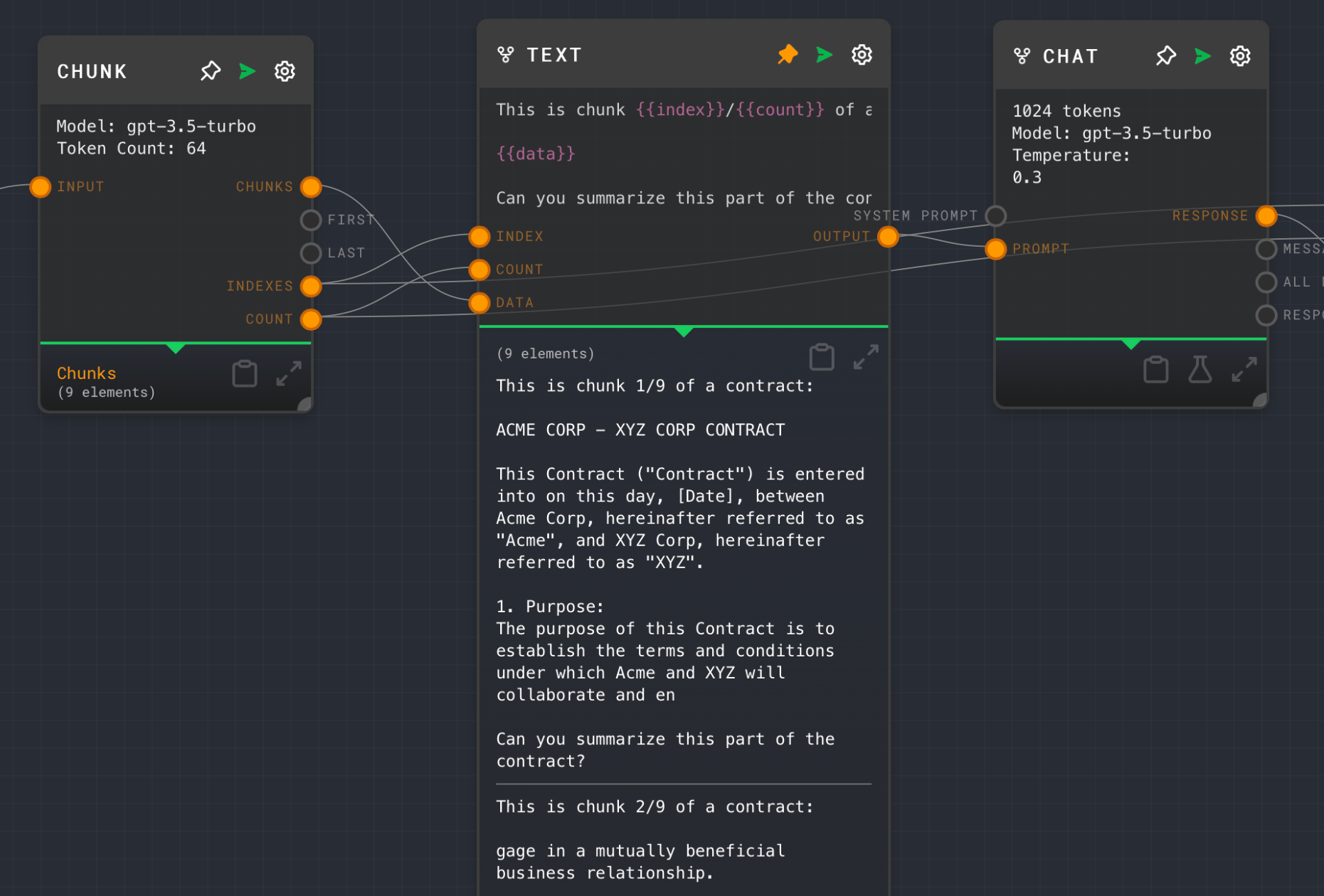
When you run the flow:- The Ask AI node will process each input in the array.
- You’ll get an output for each input.
Combining Results
After processing, you might want to combine the results:- Use a Text node with split mode turned off.
- Connect the output array from the Ask AI node to this Text node.
- The Text node will automatically concatenate the results.