

 Get Started
 Workforce
 Templates
 Documents
 Workflows
Assign and track work
Open Tasks to follow work across the AI Employees you can access. Tasks may start from a direct request, a schedule, an external event, a workflow, or delegated work. A task being accepted or queued does not mean it has finished. Follow its status and inspect the result.Create a task
1
Select New task
Open Tasks and select New task. When creating work from an individual
worker’s page, the worker may already be selected.
2
Choose the worker and goal
Select an AI Employee with the knowledge, tools, and permissions the work
requires. State the outcome, approved sources, constraints, and review
requirements.
3
Add source material
Attach relevant files where offered. Wait for uploads to complete and
resolve any failed attachments before submitting.
4
Create and follow progress
Submit the task, then open its details to review progress, questions,
approvals, and returned files.
Review the attached supplier proposals. Compare scope, price, and renewal terms in a table. Cite the source for each comparison and return a draft recommendation. Do not contact suppliers or accept any proposal.
Understand the board
Some empty lanes may be hidden. Task details provide the specific status and reason, not just the board grouping.
Answer a question or provide guidance
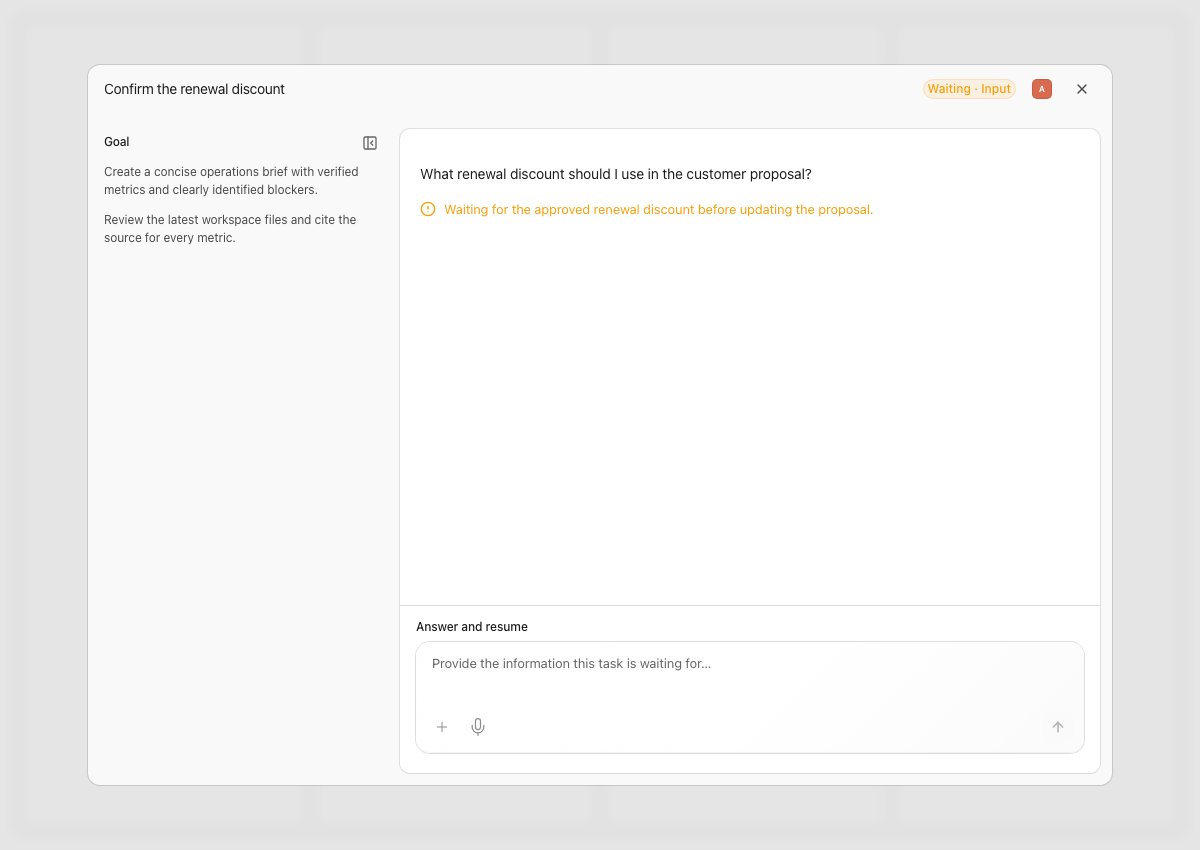
A task waiting for input, shown with Storybook example data.
Retry, cancel, or remove work
Controls depend on status and your permissions. Before retrying:- Read the failure or interruption reason.
- Check for outputs or external actions that already succeeded.
- Fix missing access, provider connections, unavailable files, or unclear instructions.
- Retry the existing task where appropriate and monitor the new attempt.
Find and review results
Open completed task details to inspect the worker’s answer and returned files. Preview supported files or download them. A summary that mentions a document is not itself a downloadable attachment. Check sources, names, numbers, and required review criteria before using the result. Use Activity for related work history, Calendar for schedules, and Actions for event-driven work.Troubleshooting
- No worker is available: Check access, service state, working hours, and account limits.
- Waiting for approval: Open the current request and resolve it through the approval controls.
- Blocked by an integration: Reconnect or grant the required tool access before resuming.
- No file appears: Read the task’s actual result. Ask for the required deliverable if the worker only returned an answer.
- Controls are read-only: Ask the worker’s manager or resource owner to review your permissions.