

 Get Started
 Workforce
 Templates
 Documents
 Workflows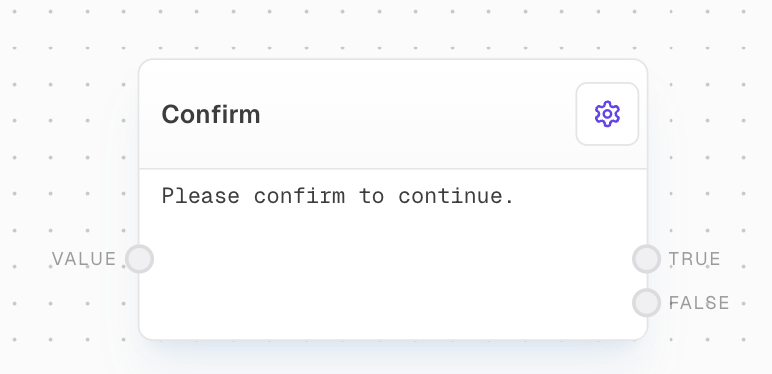
Overview
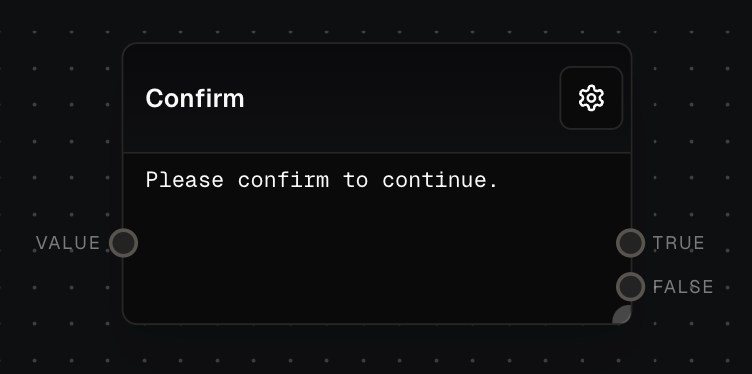
Use the Confirm block when a workflow needs a human approval step before it continues. The block prompts a user for confirmation and routes the value through either the positive or negative output, making it useful for approvals, review gates, delete confirmations, publishing checks, and other control-flow decisions. Pair it with Flow Output to return the approval result or If/Else to branch the workflow after confirmation.Inputs
string
The message to display to the user when prompting for confirmation. Only available when “Use Input” is enabled.
any
A value to wait for before showing the confirmation prompt. Only available when “Wait For Input” is enabled.
string
A value that will be passed through to either the True or False output depending on the user’s response.
Outputs
any
The
value input is passed through this output if the user confirms positively.any
The
value input is passed through this output if the user confirms negatively.Editor Settings
string
default:"Please confirm to continue."
The message to display to the user when prompting for confirmation. Only editable when “Use Input” is disabled.
boolean
default:false
When enabled, allows the prompt message to be provided via the prompt input port instead of the editor settings.
boolean
default:false
When enabled, delays showing the confirmation prompt until the “Wait For” input receives a value.
string
The format to render the prompt in. Can be either “preformatted” or “markdown”.
Example: Confirming a Delete Action
- Add a Confirm Block to your flow before a critical delete action.
- Set the
promptto “Are you sure you want to delete this item? This action cannot be undone.” - Connect your delete action to the
valueinput - The delete action will only execute if the user confirms positively via the
outputport. ThefalseOutputport can be used to handle the negative confirmation case.
Error Handling
The Confirm Block does not typically produce errors as it simply waits for user input. However, if there are issues with the user interface or the block fails to receive a response, it may timeout and return an error.FAQ
What's the difference between using the prompt setting vs input?
What's the difference between using the prompt setting vs input?
When “Use Input” is disabled, the prompt message is set statically in the editor settings. When enabled, the prompt can be dynamically provided via the prompt input port.
How does the Wait For Input feature work?
How does the Wait For Input feature work?
When “Wait For Input” is enabled, the confirmation prompt won’t be shown until a value is received on the “Wait For” input port. This allows you to sequence confirmations after other operations complete.
What happens to the value input?
What happens to the value input?
The value input is passed through to either the True or False output depending on how the user responds to the confirmation prompt. This allows you to conditionally route data based on user confirmation.