

 Get Started
 Workforce
 Templates
 Documents
 Workflows
Connect your tools to Odella
The Odella MCP server lets compatible assistants and developer tools work with your Odella account. Read workforce information, prepare workflows and templates, or assign tasks without leaving your preferred tool. MCP (Model Context Protocol) is a standard for connecting these tools to services. Odella provides a remote Streamable HTTP endpoint:This connects an external client to Odella. To connect an external MCP
server for your AI Employees to use, see Custom
integrations.
Create a personal access token
1
Open Developer settings
In Odella, go to Account → Developer, then select Create token.
2
Choose access and expiry
Give the token a recognizable name. Choose 30 days, 90 days, or 1
year, and select only the scopes your client needs. Read Odella data
is included by default.
3
Copy the token
Copy it before closing the confirmation. Odella shows the token only once.
Store it securely; create a replacement if you lose it.
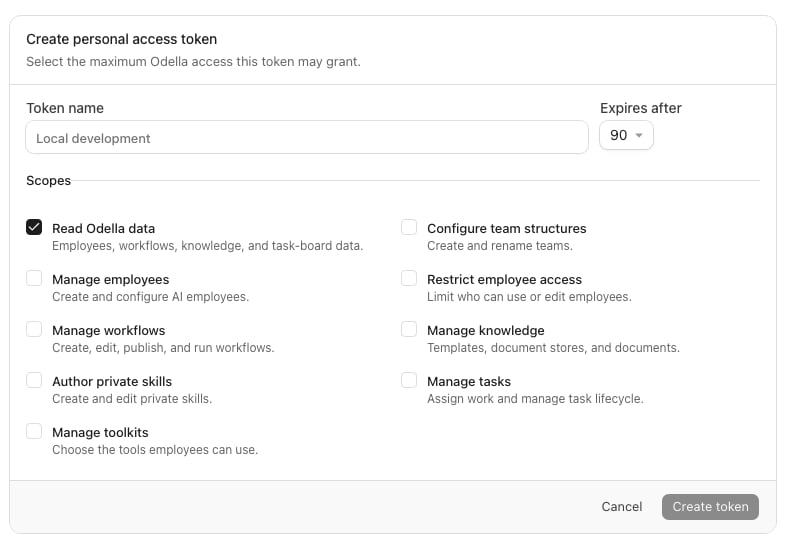
Creating a least-privilege token, shown with Storybook example data. No real credential is displayed.
Connect a client
For the examples below, set your token in the environment where your client starts:- Claude Code
- Codex
- Cursor
- OpenCode
Add Odella to your project:Run
claude /mcp to check the connection.Authorization: Bearer <YOUR_PERSONAL_ACCESS_TOKEN> with requests. Merge these examples into existing configurations rather than replacing other servers.
Choose token scopes
Some operations require more than one scope. The tools available to your client depend on the token’s scopes; having a scope does not override your permissions on a particular resource.
Test the connection
Start with a read-only token and ask your client to:- “Show my Odella account context.”
- “List the AI Employees I can access.”
- “Show the published templates available in Odella.”
odella_get_context, employees_list, and templates_list for these checks. Review results before granting write access or asking the client to publish, delete, or change business data.
Configure workers and assign work
See MCP work recipes for revision-safe instruction updates, targeted resource assignments, task creation, private file uploads, template preparation, private-skill publication, and disabled Action staging. The guide includes required scope combinations and safe recovery from uncertain mutations.Revoke or replace a token
Return to Account → Developer to review your tokens and revoke any you no longer need. Revocation takes effect on the next request. To rotate a token, create a replacement, update your client’s secret, verify the connection, then revoke the old token.Troubleshooting
- Authentication fails: Check that the token is complete, has not expired or been revoked, and is sent as a Bearer token. Confirm that your client can read its environment variable.
- A tool is missing: Check the token’s scopes. Create a replacement with the required scopes if necessary, then refresh the client’s tool list.
- An operation is denied: Confirm your current account membership, resource access, and account policies. A broader token cannot bypass these controls.
- The server is unavailable: Confirm the URL is
https://mcp.odella.ai/mcp, not the dashboard URL. If the problem persists, contact support@odella.ai without including your token.