

 Get Started
 Workforce
 Templates
 Documents
 Workflows
Organize your team
Open Account → Organization in the intended organization account. This area contains Members, Invitations, Teams, Roles, Brand, and Settings. What you can change depends on your permissions. Check the active account before inviting people or changing shared settings. A personal account and an organization account are separate workspaces.Invite members
- Open Members or Invitations and start an invitation.
- Enter the intended person’s email and review the offered access settings.
- Send the invitation, then track its status under Invitations.
- After acceptance, check the member’s team membership, role assignments, and access to the resources they need.
Create and manage teams
Use teams to group people with a shared responsibility, such as Customer operations or Finance.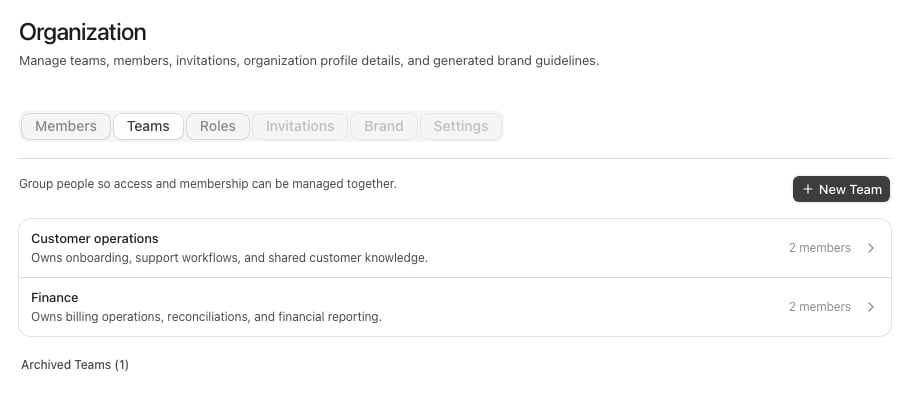
Organization teams with synthetic Storybook example data.
- Open Teams and select New Team.
- Give the team a clear name and purpose.
- Open its details to manage membership and applicable role assignments.
- Configure the resources that should be available to that team.
Roles and resource access
Use Roles to review the capabilities assigned to members or teams. Use each resource’s access controls to decide who can use that particular worker, store, or other shared resource. See Roles and permissions and Worker governance before broadening access.Organization-wide settings
- Brand manages generated brand guidelines and approved source materials. See Brand guidelines.
- Settings includes organization profile and available account-level privacy controls. Read the explanation next to each setting before enabling shared context or conversation access.
- Model privacy settings govern available model choices separately from worker assignments. See Models.
Admin read-only conversation access
Under Settings → Privacy & access, Allow admins to view member conversations controls whether organization administrators can open members’ chat history in read-only mode. This does not let an administrator send messages, retry turns, edit messages, approve actions, or act as the conversation owner. Viewed conversations display a read-only banner identifying the owner and viewer. This setting is different from a worker’s Share conversations across members setting, which controls what context the worker can draw on while helping different people. Review both deliberately; neither should be treated as unrestricted impersonation or message access.Remove or change a member
Review the person’s worker-management responsibilities, role assignments, and team memberships before removing access. Reassign accountable managers where required. Removing a member does not mean shared organization resources or records should be deleted.Troubleshooting
- Tabs or controls are read-only: Ask someone with the specific organization-management capability to make the change.
- Member cannot see a worker: Check organization membership, team/role requirements, and the worker’s governance settings.
- Unexpected account after switching: Wait for account switching to finish and confirm the organization before editing.
- A departing member manages workers: Assign a replacement manager and review automations and approvals before completing the handover.