

 Get Started
 Workforce
 Templates
 Documents
 Workflows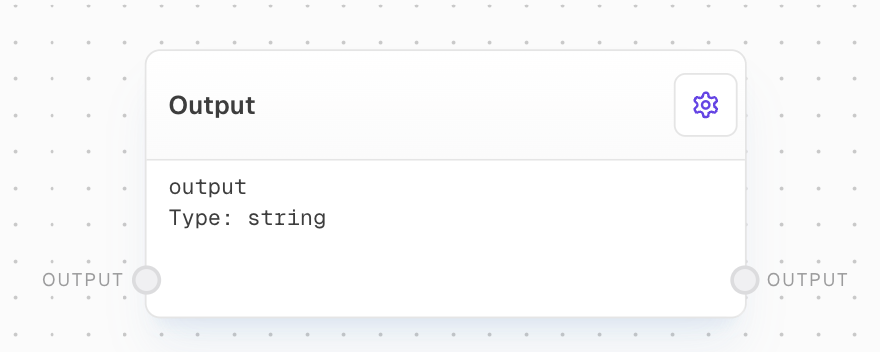
Overview
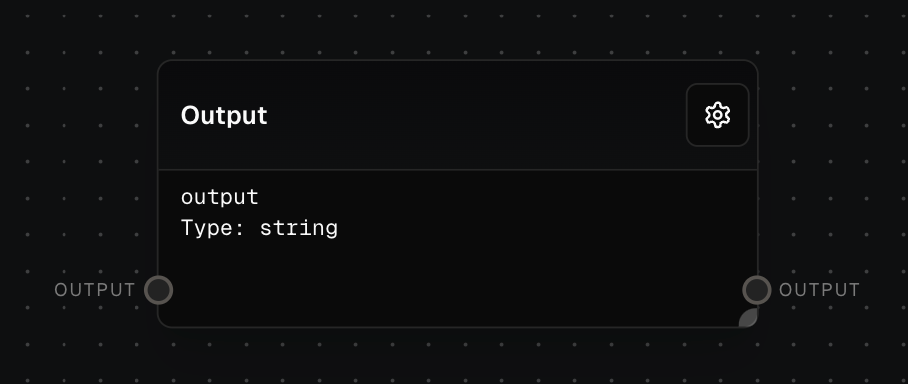
Use the Flow Output block to define what a workflow returns when it finishes. Each Flow Output block creates one named output value, making it useful for returning generated text, extracted data, files, tables, confirmation results, or structured objects from a flow. When the flow is reused as a Subflow, each Flow Output block becomes an output port on that subflow.Inputs
any
required
The value to be outputted from the flow. The data type should match the type specified in the Editor Settings.
Outputs
any
The value that was passed into the block. The data type matches the type specified in the Editor Settings.
Editor Settings
string
default:"output"
required
The unique identifier for the output. This ID is used when referencing the output and defines the output port name when used as a subflow.
string
default:"string"
Specifies the expected data type for the output. The input value will be coerced to this type if necessary.
Examples
Basic Output Definition
- Create a Text Block with the value “Hello, world!”
- Add a Flow Output Block and set the ID to “greeting” and Data Type to “String”
- Connect the Text Block to the Flow Output Block’s Value input
- In another flow, use a Subflow Block referencing the first flow
- Run the second flow to see the “greeting” output with the value “Hello, world!”
Error Handling
The Flow Output Block will generate an error if the data type of the input value doesn’t match the specified Data Type in the Editor Settings.FAQ
Can I have multiple Flow Output Blocks in a flow?
Can I have multiple Flow Output Blocks in a flow?
Yes, you can have multiple Flow Output Blocks in a flow. Each block represents an individual output of the flow. Ensure that each Flow Output Block has a unique ID.
What happens if the ID of a Flow Output Block is not unique?
What happens if the ID of a Flow Output Block is not unique?
If multiple Flow Output Blocks have the same ID, the flow’s output will contain the value of the last processed block with that ID.
Can I use the Flow Output Block to output complex data types?
Can I use the Flow Output Block to output complex data types?
Yes, the Flow Output Block can output any data type, including arrays and objects. Make sure to set the appropriate Data Type in the Editor Settings.