

 Get Started
 Workforce
 Templates
 Documents
 Workflows
Browser availability depends on the employee, account, permissions and active session. An old screenshot or activity item does not prove there is a browser you can control now.
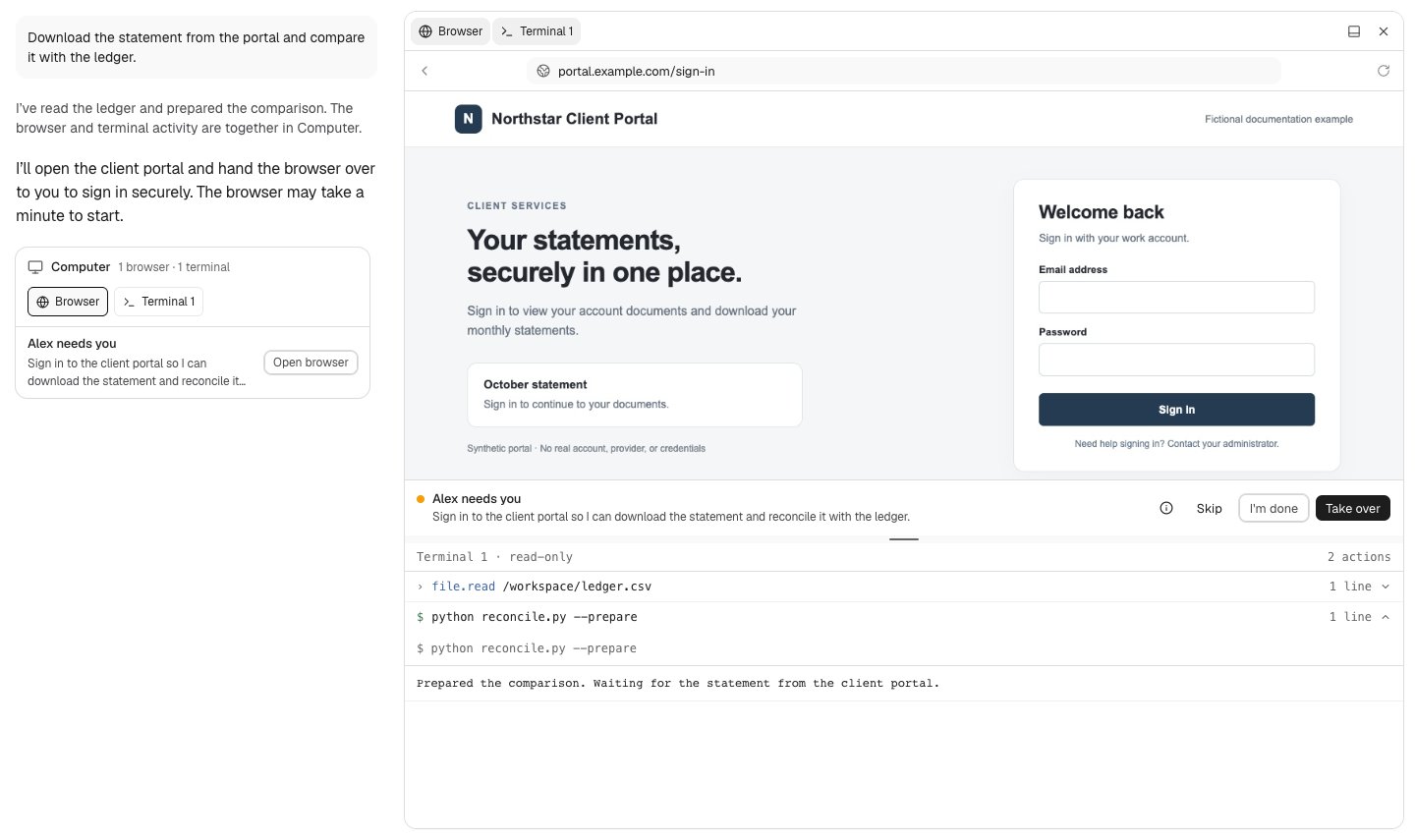
A sign-in handoff in Computer, with browser, terminal, and hand-back controls. Actual Odella UI with a fictional portal and synthetic task data; not a live session.
Respond to a browser handoff
An employee may ask you to handle a login, verification, or other step it cannot complete autonomously.- Read the request and confirm which employee, destination and task it concerns.
- Select Open browser in the conversation’s handoff card. Standalone approval views may show an in-place preview instead.
- Review the actual page and destination. Use the browser’s control toggle to interact when offered.
- Complete only the necessary step yourself—for example, provider sign-in, multifactor authentication, or consent. Do not put passwords, recovery codes or one-time codes in chat.
- Select I’m done to hand the reviewed session back. The handoff should then report Done · handed back. This resolves the handoff, not the whole task.
- Choose Skip if you cannot or should not complete it. Tell the employee what is blocked without sharing secrets.
Credentials and saved sign-ins
Where the credential request UI is available, choose a saved login from your personal Vault rather than exposing it in text. Saving a credential does not automatically grant employee use. Browser sign-ins may persist for later work. Review Account → Vault → Browser sign-ins and use Sign out of all sites if you want the saved session state cleared. This is separate from deleting a saved password, revoking an API key at its provider, or disconnecting a catalog integration.Inspect progress and results
Keep the conversation and task state as the operational record. A rendered browser page, successful click, or terminal command is not proof that the business outcome completed. Check the resulting record, file, or confirmed task output. Past browser captures and replay controls, when offered, show historical activity. They are not live control or a guarantee that an action can be undone. Do not type secrets into historical views or infer a provider’s current state from a replay.Recovery
- Browser closed: Ask the employee to reopen the appropriate work; do not reuse an unrelated session.
- View disconnected or stale: Reopen the current Computer surface and wait for its reported connection state before interacting.
- No permission to answer: Ask the intended approver; access to a conversation does not grant approval authority.
- Login failed: Check the real provider, account and MFA step. Do not repeatedly share credentials or bypass verification.
- Unsure whether an action succeeded: Check the provider and current task before asking the employee to repeat it.